
Announcing the new DocRead 365 Analytics ModuleWe are thrilled to announce the release of ...
Free Power BI Background Templates: Download, Edit and Add Them to Your Report
Last updated: November 9, 2026
Power BI makes it easy to turn your data into charts, but a page of visuals on a plain white canvas can look flat. A background template gives each visual a defined panel, ties the page to your color scheme and makes the report easier to scan. Below you'll find four free Power BI background templates to download and edit, the image sizes that fit a Power BI page, and step-by-step instructions for adding a background in the current version of Power BI Desktop.
Download free Power BI background templates
Each template is a Word document built from simple layered shapes, so you can recolor and resize the panels without a graphics package. When you're happy with the layout, save it as an image (see the steps below) and add it to your report.
Template 1: 2 visuals

A simple layout with two large panels, suited to one chart and one table, or a slicer above a detailed table. Download the 2 visuals Power BI background template (.docx)
Template 2: 4 visuals

Four panels for a summary page: for example, a gauge, a donut chart, a bar chart and a table. Download the 4 visuals Power BI background template (.docx)
Template 3: 6 visuals

Six smaller panels for a denser overview page with several KPIs side by side. Download the 6 visuals Power BI background template (.docx)
Template 4: 4 visuals, alternative layout

A second four-panel arrangement, with a different split between large and small areas. Download the 4 visuals, alternative layout Power BI background template (.docx)
Why add a background image to a Power BI report?
The two reports below show the same data. The first uses the default white canvas; the second uses a background template.
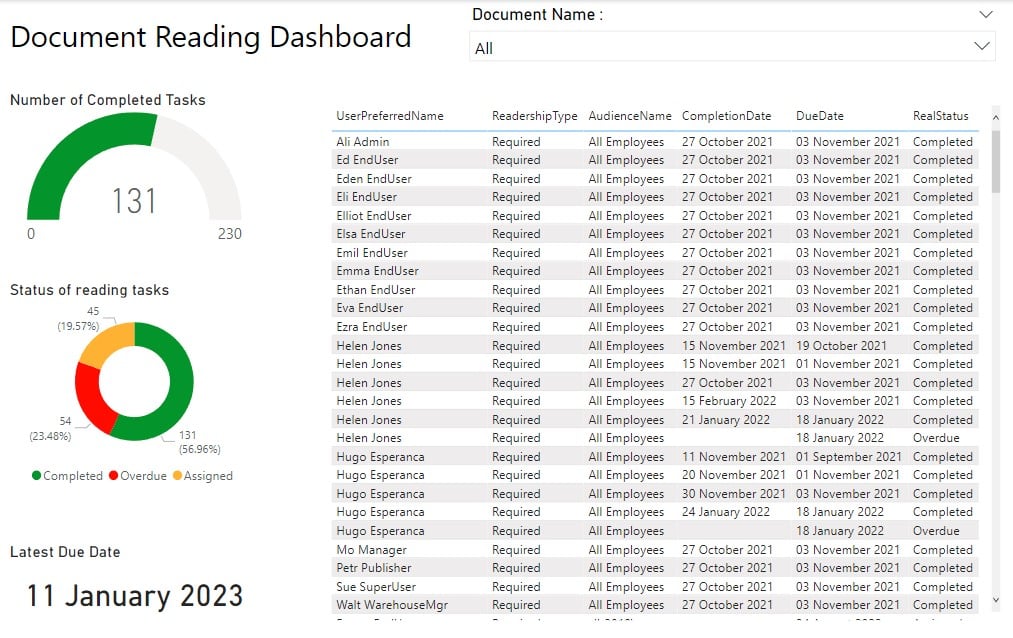
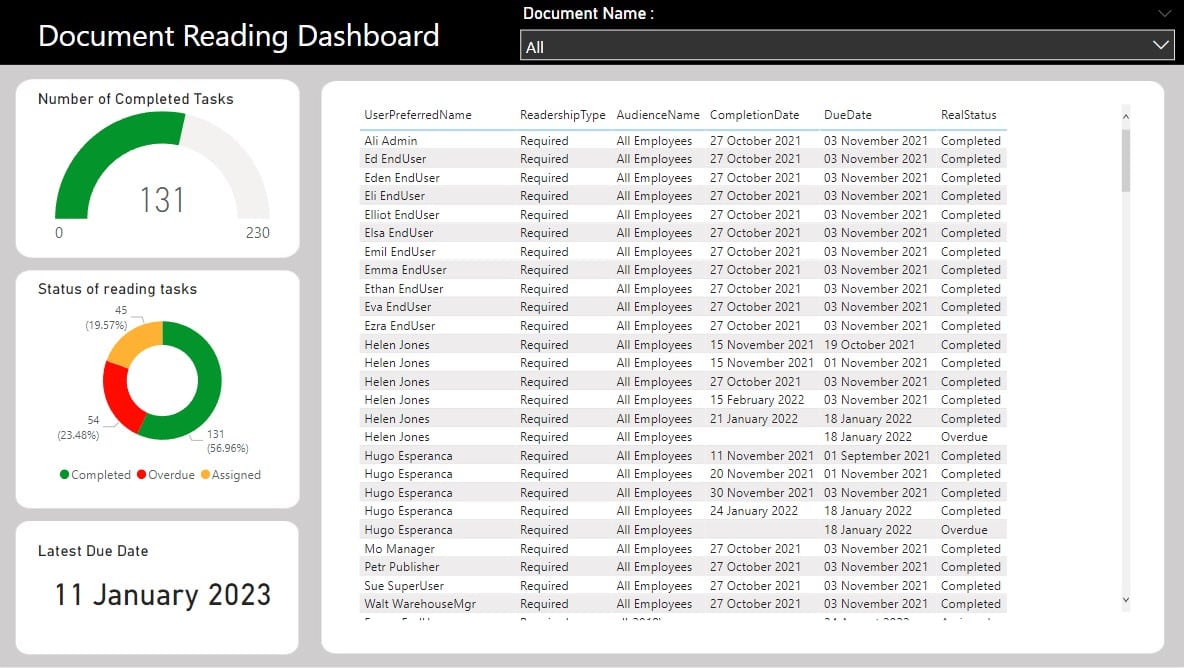
A background template helps in three ways:
- Structure. Panels group related visuals, so readers see which chart, slicer and table belong together.
- Consistency. Using the same template on every page makes a multi-page report feel like one product.
- Branding. You can match the panels and header to your organization's colors without restyling each visual.
What size should a Power BI background be?
Make the image the same shape and size as your report page. According to Microsoft Learn, new report pages use the 16:9 widescreen aspect ratio by default. You can change this under Canvas settings in the Format page options, which also offers these sizes for 16:9 pages:
| Canvas size (pixels) | Description |
|---|---|
| 1280 x 720 | HD |
| 1920 x 1080 | Full HD, common for presentations |
| 2560 x 1440 | Quad HD |
| 3840 x 2160 | 4K Ultra HD |
Other options are 4:3, Letter, Tooltip and Custom (your own width and height in pixels). If your background and page share the same aspect ratio, the image fits without distortion.
How to make your own Power BI background template
- Build your visuals first. Place and roughly size your charts, slicers and tables on the report page so you know how many panels you need and where they go.
- Set up a 16:9 page. In PowerPoint, the default widescreen slide is 16:9. In Word, use a landscape page and keep the panel area to a 16:9 shape.
- Draw the panels. Add rectangles or rounded rectangles for each visual, plus a header bar for the report title. Layer shapes to create borders and shadows.
- Keep it subtle. Use muted fills behind the visuals so data colors stand out, and leave enough contrast for titles, legends and slicer text.
- Save it as an image. Export or capture the page as a PNG or JPG. If you take a screenshot, crop it to exactly the area of the layout.
How to add a background image to a Power BI report
These steps match the current Format pane in Power BI Desktop:
- Select an empty area of the report page so that no visual is selected.
- In the Visualizations pane, select the Format page (paintbrush) icon. You can also use Page background on the Design ribbon, which opens the same setting.
- Expand Canvas background.
- Under Image, browse to and add your background image.
- Set Image fit to Fit so the image stretches to the size of the report page.
- Set Transparency to 0%. New report pages start at 100% transparency, so the image won't appear until you lower it.
- Move and resize your visuals into the panels. Change the font color of titles, legends and slicers if they don't contrast with the new background.
Canvas background vs. wallpaper
Power BI has two background settings, and they format different areas:
- Canvas background formats the report page itself, where your visuals sit. This is where a background template goes.
- Wallpaper formats the gray area outside the report page. It sits behind everything else and can use a color or an image.
Microsoft Learn explains that if you make the page more transparent, the visuals become transparent too and the wallpaper shows through. Keep the canvas background at 0% transparency when you use a template.
Backgrounds for dashboards in the Power BI service
A dashboard in the Power BI service is different from a report and doesn't have a canvas background setting. Instead, you use a dashboard theme. In its guide to dashboard themes, Microsoft recommends a background image of at least 1920 x 1080. The image must be uploaded to a public website and added by its URL, so don't use a background that contains confidential information.
Using the templates with DocRead reports
We first built these templates for policy-reading reports. If you use DocRead to track who has read and acknowledged your policies in SharePoint, you can get your DocRead data into Power BI, summarize DocRead reading tasks and build a document reading dashboard that uses one of these backgrounds. For the bigger picture, see our guide to Power BI compliance reporting and advanced DocRead reporting with Power BI.
Frequently asked questions
Where can I download free Power BI background templates?
You can download four free, editable Power BI background templates on this page. Each one is a Word document laid out for 2, 4 or 6 visuals, so you can change the colors and shapes, save the layout as an image and add it to your report.
What size should a Power BI background image be?
Match the image to your report's canvas size. Power BI reports use a 16:9 page by default, and Canvas settings offer 1280 x 720, 1920 x 1080, 2560 x 1440 and 3840 x 2160 pixel sizes. A 16:9 image at the same size as your page fits without stretching.
How do I add a background image in Power BI Desktop?
Select an empty area of the report page, open Format page in the Visualizations pane, expand Canvas background, add your image, set Image fit to Fit and set Transparency to 0%. New report pages start at 100% transparency, so the image won't show until you lower it.
What is the difference between canvas background and wallpaper in Power BI?
Canvas background formats the report page where your visuals sit. Wallpaper formats the gray area outside the report page and sits behind everything else. Both accept a color or an image.
Can I use these templates on a Power BI dashboard?
Dashboards in the Power BI service use dashboard themes instead of a canvas background. Microsoft recommends a background image of at least 1920 x 1080 for a custom dashboard theme, and the image must be uploaded to a public website and added by its URL.
Can I edit the templates to match my brand colors?
Yes. The templates are Word documents built from simple shapes, so you can change fills, borders and positions in Word, then export or capture the page as a PNG or JPG image at your canvas size.
Next step
Download a template, match it to your colors and give your next Power BI report a cleaner layout. If you need to prove who has read your policies and procedures, book a DocRead demo or start a 30-day free trial of DocRead for SharePoint Server.
You may also find the following posts helpful:
October 24, 2024
June 13, 2022
Creating a SharePoint document library dashboardSharePoint provides excellent opportunities to create document repositories. You ...
May 30, 2022
Create a Reporting Hierarchy in Power BI Creating hierarchies in your Power BI data ...
May 17, 2022
Advanced DocRead reporting with Power BI The DocRead reporting suite provides several reports to help you manage ...
May 16, 2022
Free Power BI Background Templates: Download, Edit and Add Them to Your ReportLast updated: ...
May 13, 2022
How to import your DocRead data into Power BIThe DocRead reporting suite provides several ...