
What Is an SOP? A Complete Guide to Standard Operating Procedures Most organisations lose ...
Policy management in SharePoint: the complete guide
SharePoint policy management means using SharePoint in Microsoft 365 to draft, approve, publish and version your policies, then adding a way to assign them, chase readers and record acknowledgments. SharePoint handles storage, versions and approvals well. It can't assign reading or record a confirmed sign-off on its own, which is the gap DocRead fills.

What is SharePoint policy management?
Every organization needs a reliable way to write policies, get them approved, put them in front of the right people and prove those people read them. Many already pay for the tool that can do most of this. SharePoint is the document management layer of Microsoft 365, and most HR, compliance and quality teams already keep documents there.
SharePoint policy management is the practice of running that whole process inside SharePoint: drafting in a secure workspace, approving with a recorded sign-off, publishing to a single policy library, distributing to staff, collecting acknowledgments and reviewing on a schedule. Keeping policies in one system means one current version, one set of permissions and one audit trail, instead of copies spread across email, file shares and a separate portal.
The catch is that SharePoint was built to store and manage documents, not to make sure people read them. This guide shows what SharePoint does well out of the box, where it stops, and the realistic ways to fill the gap.
| Policy management need | SharePoint on its own |
|---|---|
| Single, searchable home for policies | Yes: document libraries, metadata, search |
| Version control and history | Yes: major and minor versions |
| Formal approval before publishing | Yes: content approval, Approvals, Power Automate |
| Control over who can edit and who can only read | Yes: permissions and SharePoint groups |
| Retention and records | Yes, with Microsoft Purview retention labels |
| Assign a policy to specific people with a deadline | No |
| Reminders and escalation to managers | No |
| Time-stamped acknowledgment of the exact version read | No (views and opens only) |
Get your free policy lifecycle solution eBook
Would you prefer to read this guide as an eBook? Feel free to download your free eBook to keep as a reference or share with your colleagues to help you create your ideal Policy Management solution.
What are the stages of the policy lifecycle?
Policy lifecycle management starts with a business need. A new regulation, a safety risk, an audit finding or a change in how you work creates a request for a new policy or an amendment. From there, a policy moves through eight stages and then loops back to review. How you run each stage should be set out in your metapolicy, the "policy on policies" that governs how policies are written, approved, communicated and maintained.
| Stage | What happens | SharePoint feature that helps | Gap to plan for |
|---|---|---|---|
| 1. Draft | The policy owner researches and writes the first version with a small team | A dedicated policy workspace site, real-time co-authoring in Word, minor (draft) versions | Making sure contributors read the guidance documents first |
| 2. Review | Stakeholders such as HR, legal and subject experts comment and request changes | Comments, version history, restricted draft visibility | Chasing reviewers who don't respond |
| 3. Approve | A named approver signs off, or rejects with comments | Content approval, Approvals in lists and libraries, Power Automate approval flows | None for most teams |
| 4. Publish | The approved version becomes the live policy | Major version, policy library, metadata, PDF copy | Keeping drafts out of sight of general staff |
| 5. Distribute | The policy is sent to everyone it applies to | Audience targeting on pages and navigation, news posts | No way to assign a document to people as a task |
| 6. Acknowledge | Each person reads it and confirms they understand and accept it | File insights and the audit log show who opened a file | No confirmed, version-specific acknowledgment record |
| 7. Review again | The owner reviews on a schedule or when a law or process changes | A "Next review date" column, scheduled Power Automate flows | Re-collecting acknowledgments for the new version |
| 8. Retire | The policy is withdrawn or replaced, and the record is kept | Retention labels, an archive library, permission changes | Keeping acknowledgment evidence linked to the retired version |
Stages 1 to 4 and stage 8 are document management, which SharePoint does well. Stages 5 to 7 are about people, and that is where most SharePoint policy management projects need extra help.
How do you set up SharePoint for drafting and approving policies?
Separate the place where policies are written from the place where staff read them. Drafts, meeting notes and rejected versions should never sit next to the live policy.
Create a policy workspace directory
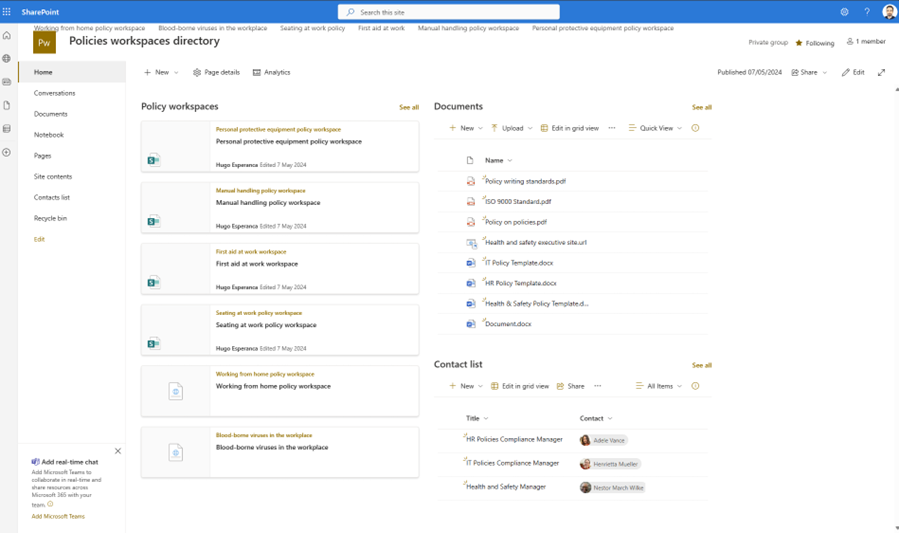
Set up a SharePoint hub site as a directory for all policy work. It holds no policy content of its own. It gives the policy management team one place to see every workspace and its status. A typical directory includes:
- A Policy workspaces list that tracks each policy in progress, its owner and its stage
- A Contacts list for the policy management team
- A Documents library for your metapolicy, templates and drafting guidance
Use three permission levels on the directory: site owners who manage structure, members who add and update items, and visitors who can only view.
Give each policy its own workspace
Each new policy or major amendment gets a dedicated team site, associated with the hub. The workspace keeps research, drafts, notes, tasks and discussions for that one policy together and secure. Build the first workspace the way you want it, then save it as a site template so every new workspace starts with the same libraries, lists and pages. Useful components include a drafts library, a reference library for regulations and research, a task list, a calendar for key dates, and a page that shows the people involved.
Secure each workspace with its own groups
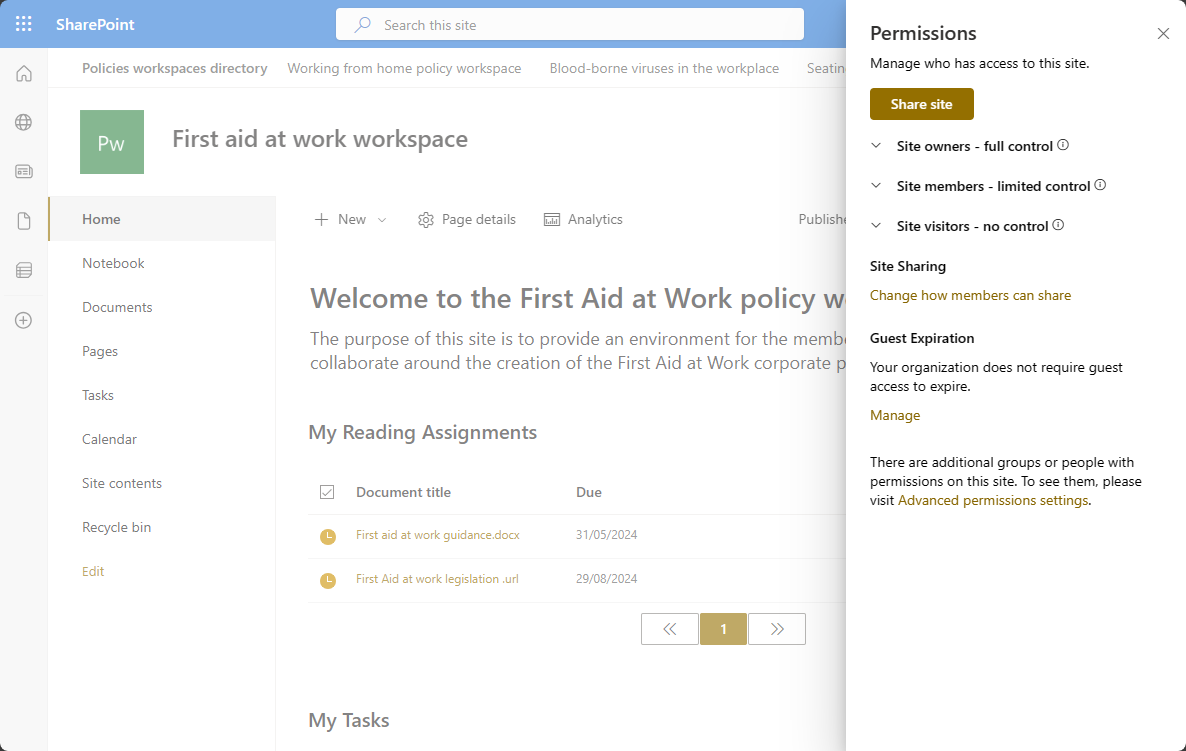
Create three SharePoint groups per workspace so access matches the role each person plays:
| Group | Who belongs | What they can do |
|---|---|---|
| First Aid Policy Owners | Policy owner, site administrator | Full control of the workspace |
| First Aid Policy Members | Authors and contributors | Add and edit drafts and supporting files |
| First Aid Policy Approvers | Named sign-off authority | Approve or reject; can overlap with other groups |
Because search only returns what a person has permission to open, people outside the workspace won't find its drafts or minutes.
Make sure contributors read the guidance first
Policy owners often struggle to confirm that everyone drafting a policy has read the regulation, standard or guidance it is based on. SharePoint can store those reference documents, but it can't ask contributors to confirm they read them. With DocRead, you can assign the reference documents to the workspace's Members group with a short deadline, for example three days, and see who has confirmed before the drafting meeting.
Co-author, review and approve
Authors can edit the same Word document at the same time with real-time co-authoring. Co-authoring requires "Require check out" to be off in the library's versioning settings. Reviewers comment in the document, and version history shows who changed what and when.
When the draft is ready, run a formal approval. You have three built-in choices:
- Content approval. Turn on "Require content approval for submitted items" in the library's versioning settings. New and changed files stay in Pending status and are visible only to their author and people with approval rights until someone approves them.
- Approvals in lists and libraries. A newer Microsoft 365 feature lets you request approval on a file directly from the library. The file is view-only while approval is in progress, and approvers respond in the Approvals app or Microsoft Teams.
- A Power Automate approval flow. For multi-stage or conditional sign-off, a flow can start an approval, wait for the response and set the file's content approval status to Approved or Rejected, with the approver's comments recorded.
If approval is rejected, the draft goes back to the authors with comments and the cycle repeats.
Finalize and publish
Once approved, publish the policy as a major version. Many teams also save the final version as a PDF and move only that file to the staff-facing policy library, so the live policy can't be edited by accident. The Word drafts stay in the workspace with their full version history.
How do you build a policy library in SharePoint?
The SharePoint policy library is where staff find the current version of every policy and procedure. Build it as a communication site or a dedicated site on your intranet, with read-only access for most employees and edit rights only for the policy management team.
Use document libraries, not file shares or folders
Store policies in SharePoint document libraries rather than on a network drive. Libraries give you versioning, approval, metadata, custom views, permissions and automation in one place. Keep folders to a minimum. A folder forces each policy into one location, while metadata lets the same First Aid policy appear under both "Health and Safety" and "Policies" without a second copy. For more detail, see using metadata to classify policies.
Create a policy content type
A content type is a reusable set of columns, a document template and settings. Create a "Policy" content type (and a "Procedure" one if they differ) in the content type gallery in the SharePoint admin center, attach your Word template, and publish it to the sites that need it. Every new policy then starts from the same template with the same required fields. If you need a starting point, use our free policy template for Microsoft Word.
Add metadata that answers real questions
Choose columns that help people find a policy and help owners manage it. Use managed metadata (term sets in the term store) for values that must stay consistent across sites, such as department or policy category. Managed metadata also powers search refiners, so staff can filter results by category.
| Column | Type | Why it matters |
|---|---|---|
| Policy ID | Single line of text | A stable reference such as HR-014 that survives title changes |
| Policy category | Managed metadata | Consistent filtering and search refiners |
| Department / applies to | Managed metadata | Shows who the policy affects |
| Policy owner | Person | One accountable person for questions and reviews |
| Approver | Person | Who signed off this version |
| Effective date | Date | When the current version took effect |
| Next review date | Date | Drives review reminders and overdue views |
| Regulation or standard | Managed metadata | Links policies to ISO 9001, HIPAA, GDPR and similar requirements |
| Status | Choice | Draft, In review, Live, Under revision, Retired |
On SharePoint Server, the Document ID Service can also give each file a unique ID that stays with it if it moves to another library.
Turn on versioning with major and minor versions
Versioning stops people overwriting each other's work and lets you restore or compare earlier versions. Libraries can track major versions (1.0, 2.0) for published policies and minor versions (1.1, 1.2) for drafts. In SharePoint in Microsoft 365, new libraries keep 500 major versions by default, and admins can change version limits for the organization or for each library. Set draft item security so only editors can see minor versions. That way staff only ever see the published policy.
Require approval before anything goes live
Turn on content approval in the policy library as well as in the workspaces. When both major and minor versions are tracked, an author must publish a major version before it can be submitted for approval, and pending items stay visible only to their author and approvers.
Set permissions by role
Give the policy management team edit rights and everyone else read rights. Assign permissions to groups rather than individuals so access follows people as they join and leave teams. If contractors or partners must read certain policies, give them access only to the libraries or files they need.
Make policies easy to find
Build views that match how people look for policies: by department, by category, recently updated, and due for review. Add the library to your intranet home page and navigation. Use audience targeting to show department-specific policies to the right Microsoft 365 or security groups on pages and in navigation. Audience targeting controls what people see on a page. It does not change permissions, and it doesn't assign anything.
Plan retention and records
Older guides recommend a SharePoint Records Center. In Microsoft 365, records management is handled by Microsoft Purview retention labels, which can mark a published policy as a record. Record status restricts editing and deletion, and record versioning lets authorized people still publish controlled updates. Apply a retention label to retired policies so they are kept for the period your regulators require.
What can't SharePoint do natively for policy management?
SharePoint tells you a lot about documents and very little about whether people have read them. These are the gaps compliance, HR and quality teams run into.
It can't assign a policy to people
Publishing a policy on the intranet makes it available. It doesn't tell anyone they must read it, and it doesn't create a task for each person. Audience targeting decides who sees a link, not who is required to read the file.
It can't set reading deadlines or chase late readers
There is no built-in due date for reading a document, no reminder when someone hasn't, and no escalation to their manager when the deadline passes. SharePoint alerts, which some teams used to notify staff of changes, have been retired in SharePoint in Microsoft 365. Microsoft blocked new alerts for all tenants in January 2026 and removed the feature in July 2026, recommending Power Automate and SharePoint rules instead.
It can't record a confirmed acknowledgment
SharePoint can show who opened a file. The Viewers information on a file card lists people who viewed it, if your SharePoint administrator has turned the feature on. The Microsoft Purview audit log records file access events and, in Audit (Standard), keeps them for 180 days. Neither one records that a person confirmed they read and accept a specific version, which is the evidence auditors ask for.
It doesn't keep up with joiners, movers and leavers
When someone joins the company or moves to a new team, they need to read the policies that apply to their new role. SharePoint has no way to issue those reading tasks automatically.
It can't test understanding
For high-risk policies, a click to confirm may not be enough. SharePoint has no way to attach a short quiz to a policy and require a pass mark before the reader can confirm.
What changed since older SharePoint policy guides?
If your current setup was designed for SharePoint 2010, SharePoint 2013 or the early days of Office 365, check these changes:
| Then | Now |
|---|---|
| Office 365 | Microsoft 365 (SharePoint in Microsoft 365 / SharePoint Online) |
| SharePoint 2010 workflows | Retired in SharePoint Online on November 1, 2020 |
| SharePoint 2013 workflows | Removed from all SharePoint Online tenants on April 2, 2026; use Power Automate or Approvals in lists and libraries |
| SharePoint alerts | Removed from SharePoint Online in July 2026; use Power Automate or SharePoint rules |
| Records Center | Microsoft Purview retention labels and records management |
| Azure Active Directory groups | Microsoft Entra ID groups (renamed in 2023) |
| SharePoint Server 2016 and 2019 | Microsoft ended support on July 14, 2026; SharePoint Server Subscription Edition remains supported |
Tired of reminding staff to read your company policies?
DocRead makes compliance simple
What are your options for policy acknowledgment in SharePoint?
You have three realistic routes: build it yourself with Power Automate and Microsoft Forms, add read-and-acknowledge software that runs inside SharePoint, or move policies to a separate policy management system.
Option 1: Build it with Power Automate and Microsoft Forms
A typical do-it-yourself build looks like this:
- Create a SharePoint list to hold acknowledgments, with columns for policy, version, person and date.
- Create a Microsoft Form with a confirmation statement such as "I have read and understood this policy."
- Build a flow that runs when a policy is published, looks up the members of the target group and emails or messages each person a link to the policy and the form.
- Build a second flow that writes each form response to the acknowledgments list.
- Build a scheduled flow that compares the list with the group and sends reminders to anyone who hasn't responded.
This can work for a handful of policies. The weaknesses show up at scale and at audit time:
- A form response doesn't prove the person opened the policy, and it isn't tied to a version unless you build that in.
- New starters and people who change teams need yet another flow.
- Each new policy, version or group may need the flows updated.
- Reporting means building and maintaining your own views or dashboards.
- The flows depend on the person who built them. When that person leaves, someone has to take over ownership and support.
Option 2: Add read-and-acknowledge software to SharePoint
An add-on such as DocRead keeps your policies where they already are and adds the people side of the lifecycle: assignment, deadlines, reminders, acknowledgment records and reporting. There is nothing to migrate and nothing new for staff to log in to. Most policy managers configure it themselves without code.
Option 3: Move to a standalone policy management system
Standalone platforms handle the full lifecycle in their own system. The trade-off is a second document store. Policies often end up in two places, staff need another login, and version control gets harder because the "real" copy can drift from what's in SharePoint. Before choosing, read how to migrate legacy policies into a policy management system.
| Requirement | SharePoint only | Power Automate + Forms | DocRead in SharePoint |
|---|---|---|---|
| Assign to SharePoint or Entra ID groups | No | Custom build | Yes |
| Reading deadlines | No | Custom build | Yes |
| Reminders and manager escalation | No | Custom build | Yes |
| Reader must open the document before confirming | No | Hard to enforce | Yes |
| Time-stamped record of the exact version read | No | Only if built in | Yes |
| Automatic tasks for joiners and movers | No | Extra flows | Yes |
| Who has and hasn't read reports | No | Custom views | Built-in dashboards |
| Quizzes linked to a policy | No | Separate form | With DocSurvey |
| Policies stay in your SharePoint library | Yes | Yes | Yes |
If you're comparing tools, our policy management software checklist and guide to features to look for in policy management software for SharePoint cover selection in detail.
How does DocRead handle distribution and acknowledgment?
DocRead is read-and-acknowledge policy management software that runs inside SharePoint. DocRead for Microsoft 365 works with SharePoint Online, and DocRead for SharePoint Server runs on SharePoint Server 2019 and 2016. Here's how it covers stages 5 to 7 of the lifecycle:
- Target. The policy manager assigns a policy or procedure in a SharePoint library to SharePoint groups or Microsoft Entra ID groups, for example the Warehouse and Sales teams for a contractor-management policy. Documents can be Word, Excel, PDF or SharePoint pages.
- Set a deadline. Each person gets a reading task with a due date and an email notification.
- Read. Staff see their outstanding policies in a reading assignments web part on the intranet. They must open the document before they can confirm it.
- Acknowledge. DocRead records a time-stamped acknowledgment of the exact version the person read.
- Chase. Reminders go out automatically, and overdue tasks escalate to managers.
- Track. Library-level dashboards and organization-wide reports show who has and hasn't read each policy, with drill-down to individuals.
- Keep up with change. Smart Move watches group membership. When someone joins a group, they get the policies assigned to it. When they leave, their open tasks close.
- Re-acknowledge. When a policy changes, you can reissue reading tasks linked to the new version and restart tracking.
For policies where understanding matters as much as receipt, DocSurvey links a quiz to the document. Readers must reach the pass mark before they can confirm, and the results show which sections of a policy people find confusing.
DocRead is rated 5.0 on Capterra from 12 reviews. Book a demo to see DocRead for Microsoft 365 working in a SharePoint library like yours.
How do you keep policies current after they're published?
Schedule reviews
Set a review cycle for each policy in your metapolicy, often annual for high-risk policies and longer for low-risk ones, and record it in the "Next review date" column. A scheduled Power Automate flow can email each owner a set number of days before the date, and a "Due for review" view gives the policy team a running list. Trigger an early review when a law, standard or process changes.
Re-collect acknowledgments when content changes
A minor wording fix may not need everyone to read the policy again. A change to what people must do usually does. Decide which is which in your metapolicy, publish the new major version and, for material changes, reissue reading tasks so your evidence matches the version now in force.
Retire policies without losing the evidence
When a policy is withdrawn or replaced, move it to an archive library with restricted access, set its status to Retired, remove it from intranet pages and targeting, and apply the retention label your record schedule requires. Keep the acknowledgment records for the retired version. Auditors may ask who had read it during the period it was in force.
What do regulators and standards expect from policy management?
Requirements vary by industry and country, but three common reference points show why storage alone isn't enough:
- US Department of Justice. The Evaluation of Corporate Compliance Programs (updated September 2024) asks whether policies "have been published in a searchable format for easy reference," how the company confirms "that employees know how to access relevant policies," and whether it tracks "access to various policies and procedures."
- ISO 9001. The quality management standard requires organizations to control documented information, including review and approval, version control, and retention and disposition (clause 7.5 in ISO 9001:2015). ISO replaced ISO 9001:2015 with ISO 9001:2026 in September 2026, so check the transition timeline with your certification body.
- FDA 21 CFR Part 11. For GxP records signed electronically, Section 11.50 requires the signed record to show the signer's printed name, the date and time of signing, and the meaning of the signature, such as review or approval.
Whatever applies to you, the pattern is the same. You need to show the approved version, who it was sent to, and who confirmed they read it.
SharePoint policy management checklist
Use this checklist to set up or audit your SharePoint policies and procedures.
Governance
- A metapolicy defines how policies are requested, written, approved, distributed, reviewed and retired
- Every policy has a named owner and a named approver
- Review cycles are set by risk level
Drafting and approval
- A policy workspace directory (hub site) tracks policies in progress
- Each policy has its own workspace built from a site template
- Workspace access uses Owners, Members and Approvers groups
- Approval runs through content approval, Approvals in lists and libraries, or Power Automate, not SharePoint 2010 or 2013 workflows
Policy library
- Policies live in document libraries, not file shares or email
- A Policy content type with a Word template is published to the library
- Metadata includes policy ID, category, owner, effective date and next review date
- Major and minor versioning is on, and draft item security hides drafts from readers
- Content approval is required for the live library
- Staff have read-only access; edit rights sit with the policy team
- Views exist for department, category, recently updated and due for review
- Retention labels cover live and retired policies
Distribution and evidence
- Each policy is assigned to the groups it applies to, with a reading deadline
- Reminders and manager escalation run automatically
- Acknowledgments record the person, the version and the time
- New starters and movers receive the right policies without manual work
- Material changes trigger re-acknowledgment
- Reports show who has and hasn't read each policy, ready for audit
- No process depends on SharePoint alerts, which are retired
Next steps
SharePoint gives you a solid base for policy management: one library, controlled versions, recorded approvals and managed retention. Add assignment, deadlines and confirmed acknowledgments, and you have a complete policy lifecycle in the Microsoft 365 tools your staff already use. Book a demo of DocRead for Microsoft 365, or see DocRead for SharePoint Server.
Frequently asked questions
Can SharePoint be used for policy management?
Yes. SharePoint in Microsoft 365 handles the document side of policy management well: libraries, metadata, version history, content approval, permissions, search and retention labels. It doesn't assign policies to people, set reading deadlines or record confirmed acknowledgments. Most organizations add that with a Power Automate build or read-and-acknowledge software such as DocRead that runs inside SharePoint.
Does SharePoint have a read and acknowledge feature?
No. SharePoint has no built-in way to require someone to read a document and confirm it. You can show who viewed a file through file insights or the Microsoft Purview audit log, but a view isn't an acknowledgment. To capture confirmations you need a custom Power Automate and Microsoft Forms solution or an add-on such as DocRead.
How can I see who has read a policy in SharePoint?
The Viewers information on a file card shows people who viewed the file, if your SharePoint administrator has enabled it. The Microsoft Purview audit log records file access, and Audit (Standard) keeps records for 180 days. Neither confirms that a person read and accepted a specific version, so most compliance teams use acknowledgment software for audit evidence.
How should I structure a SharePoint policy library?
Use a dedicated site with one or more document libraries, a Policy content type with your Word template, and metadata such as policy ID, category, owner, effective date and next review date. Turn on major and minor versioning, hide drafts from readers, require content approval and give most staff read-only access. Use views and search refiners instead of deep folders.
Can Power Automate track policy acknowledgments?
It can, with a custom build. A common pattern sends a policy link and a Microsoft Form to a group, saves responses to a SharePoint list and sends reminders on a schedule. It works for a few policies but takes ongoing maintenance, doesn't prove the document was opened, and needs extra flows to handle new starters and new versions.
What replaced SharePoint alerts and SharePoint 2013 workflows?
Microsoft removed SharePoint 2013 workflows from SharePoint Online on April 2, 2026, and removed SharePoint alerts in July 2026. Microsoft recommends Power Automate for both, plus Approvals in lists and libraries for simple sign-offs and SharePoint rules for notifications. SharePoint Server is not affected by the workflow retirement.
How often should policies be reviewed?
Set the cycle in your metapolicy based on risk. Many organizations review high-risk policies every year and lower-risk ones every two or three years. Also review early when a law, standard or process changes. Record the next review date in a library column so a scheduled flow can remind the owner before it's due.
Find out how DocRead can help
Find out how DocRead can help target your policies and documents by booking a personalized demonstration with one of our experts. During the call they will be able to discuss your specific requirements and show how DocRead can help.
If you have any questions please let us know.
DocRead has enabled us to see a massive efficiency improvement... we are now saving 2 to 3 weeks per policy on administration alone.
Nick Ferguson
Peregrine Pharmaceuticals
Feedback for the on-premises version of DocRead.