
Cost Reduction Is a Leadership Skill Cost reduction is usually framed as a finance ...
How to add video to a SharePoint page in under 5 minutes
Adding videos to SharePoint online or Office 365 pages is quite simple and only takes a few steps.
1) Create a new page to hold the video
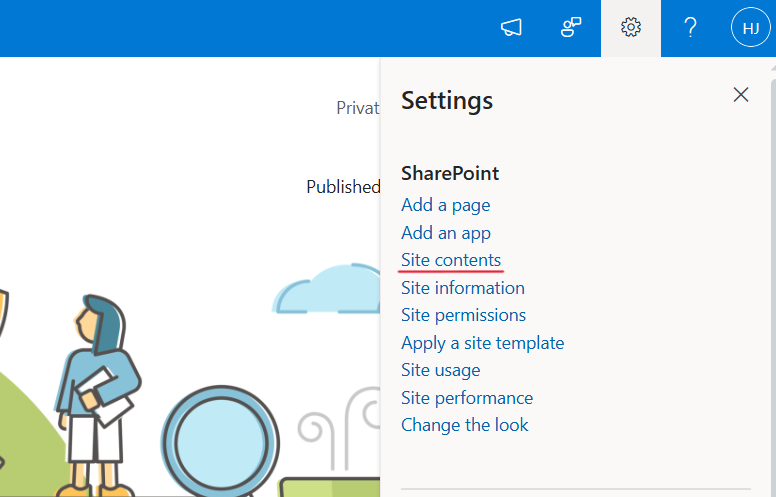
Navigate to the site where you want to the page to be added and select the Settings Cog, then select "Site contents"
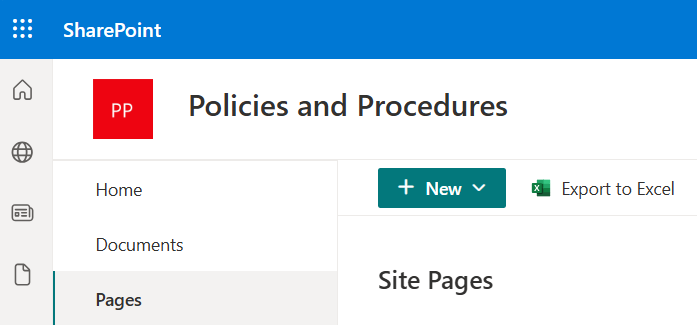
Select the Site pages library and select "+ New"
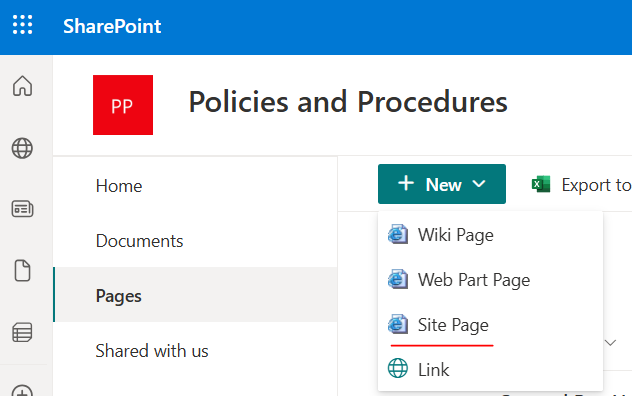
Select "Site Page"
2) Style your new page
You can style your new page as you like. To add a video, you need to add a web part into your preferred area of the page. There are several different options, depending on where your video is stored.
Click on the "+" in the area of the page you want the video to be displayed, type "Video" into the search bar to view the available options and select the one you want.
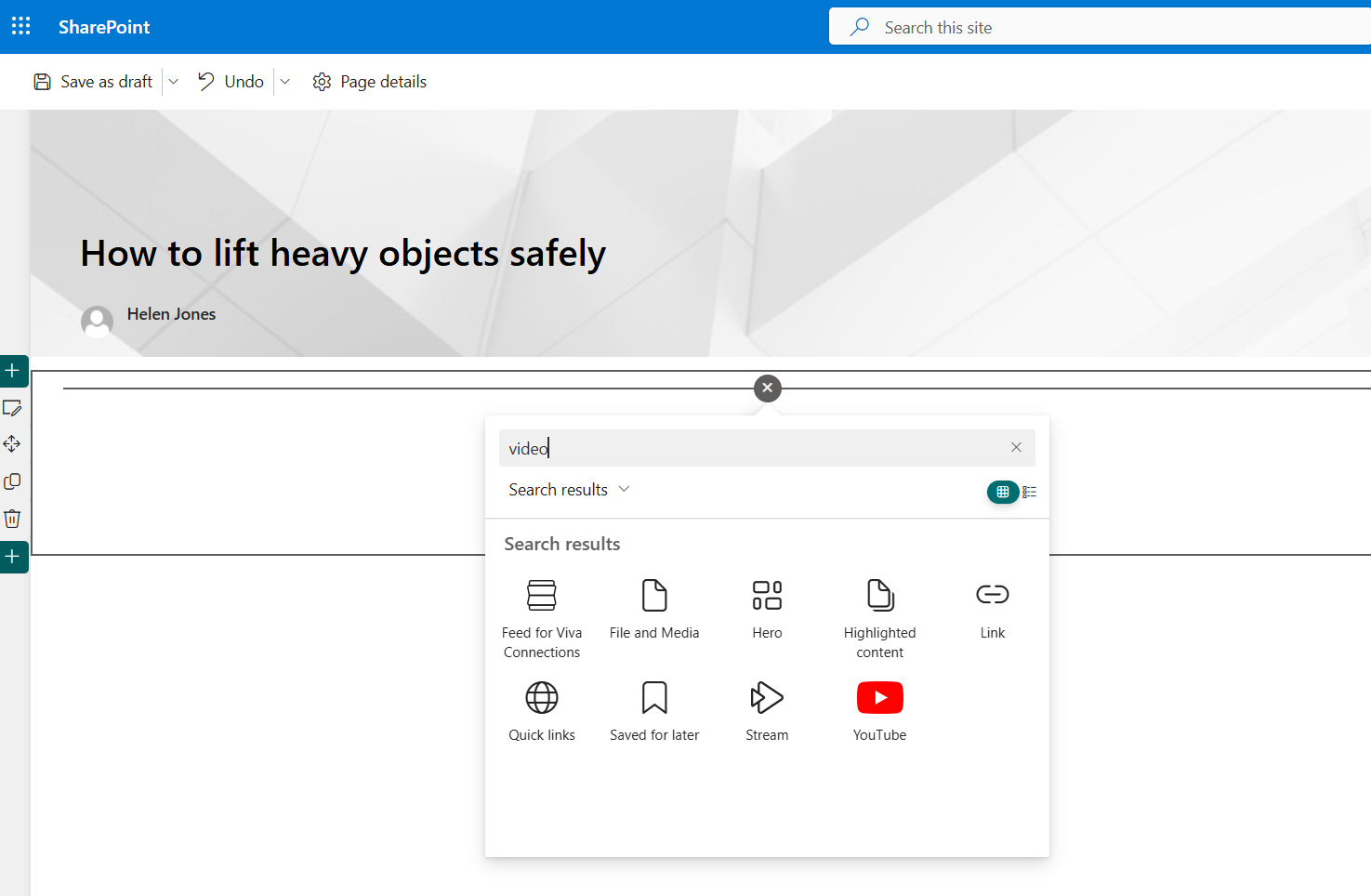
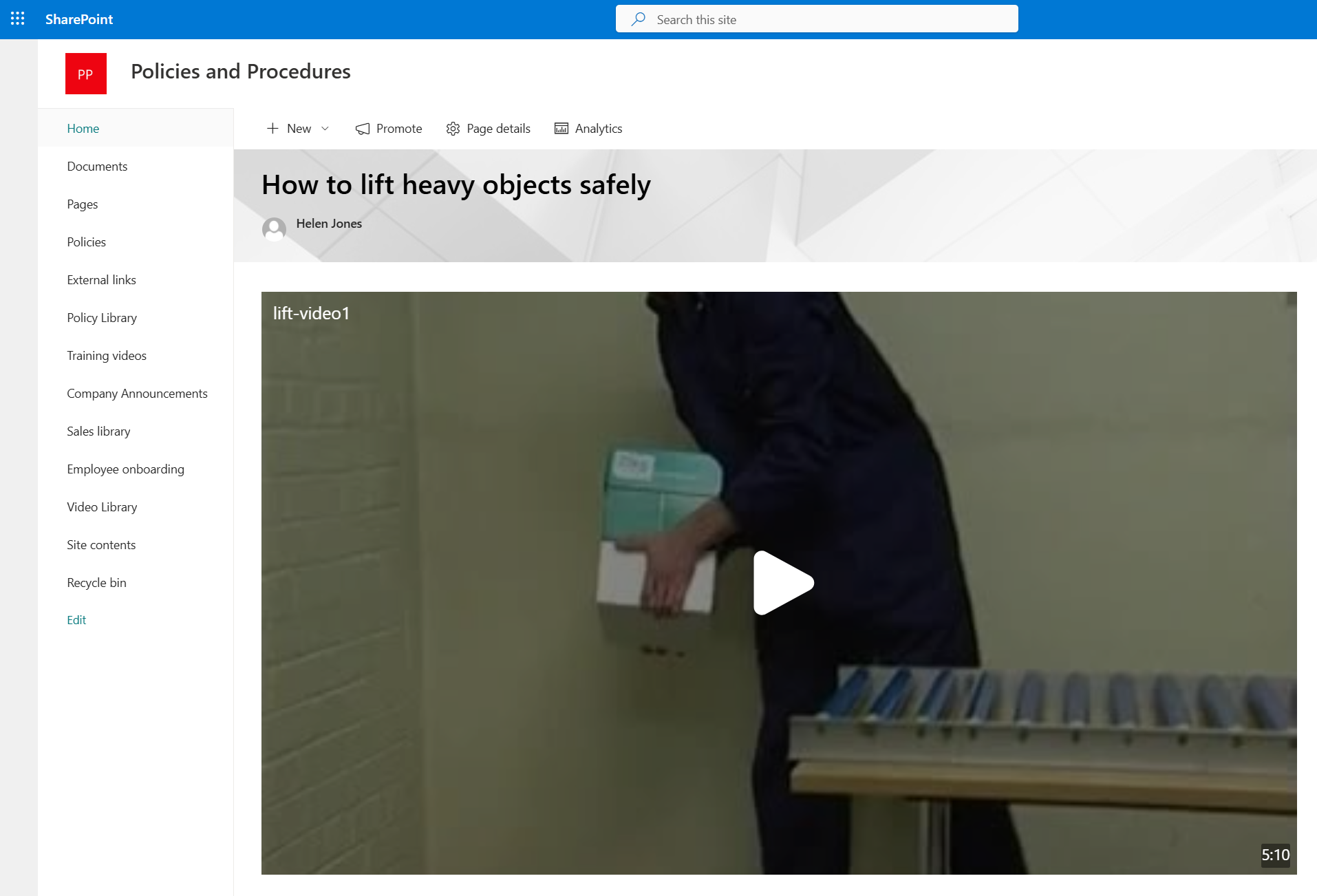
Your video will be displayed in the page.
You may also like:
March 27, 2026
March 13, 2026
Cost Reduction Is a Leadership Skill Cost reduction is usually framed as a finance ...
February 12, 2026
ConvergePoint vs Xoralia vs DocRead: A Real-World Policy Management Comparison If your organization uses ...
August 5, 2025
"Why Managing Document Versions in SharePoint is So Hard (and What to Do About ...
January 17, 2025
Policy Approval Workflow Automated policy approval workflows offer several benefits that can significantly enhance ...
January 7, 2025
Creating policy review reminders in Office 365 You might want to set up a ...