
Microsoft Purview vs Policy Acknowledgment Software: What Each Tool Does (and Doesn’t) Do Microsoft ...
How to add video to a SharePoint page in under 5 minutes
Adding videos to SharePoint online or Office 365 pages is quite simple and only takes a few steps.
1) Create a new page to hold the video
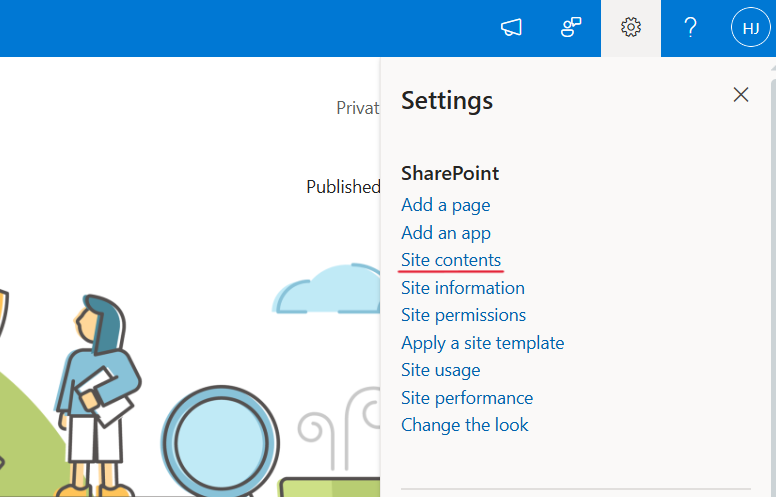
Navigate to the site where you want to the page to be added and select the Settings Cog, then select "Site contents"
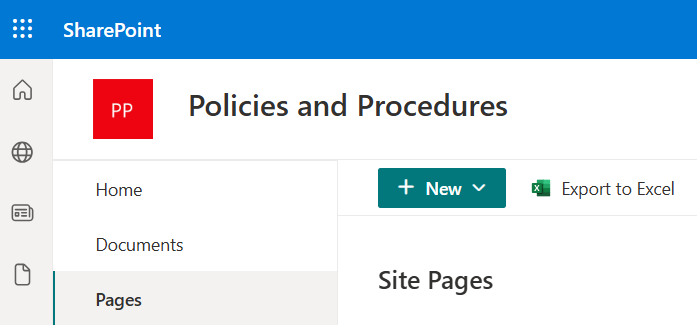
Select the Site pages library and select "+ New"
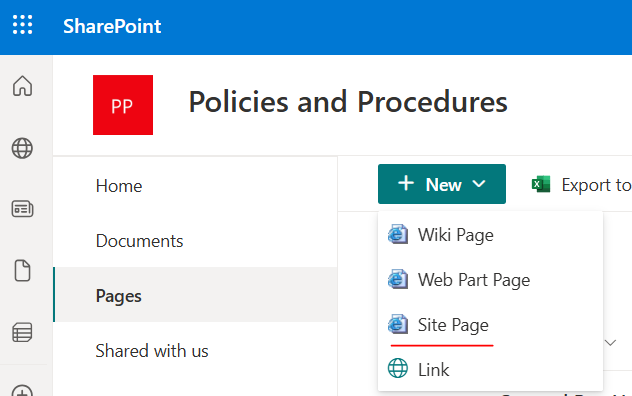
Select "Site Page"
2) Style your new page
You can style your new page as you like. To add a video, you need to add a web part into your preferred area of the page. There are several different options, depending on where your video is stored.
Click on the "+" in the area of the page you want the video to be displayed, type "Video" into the search bar to view the available options and select the one you want.
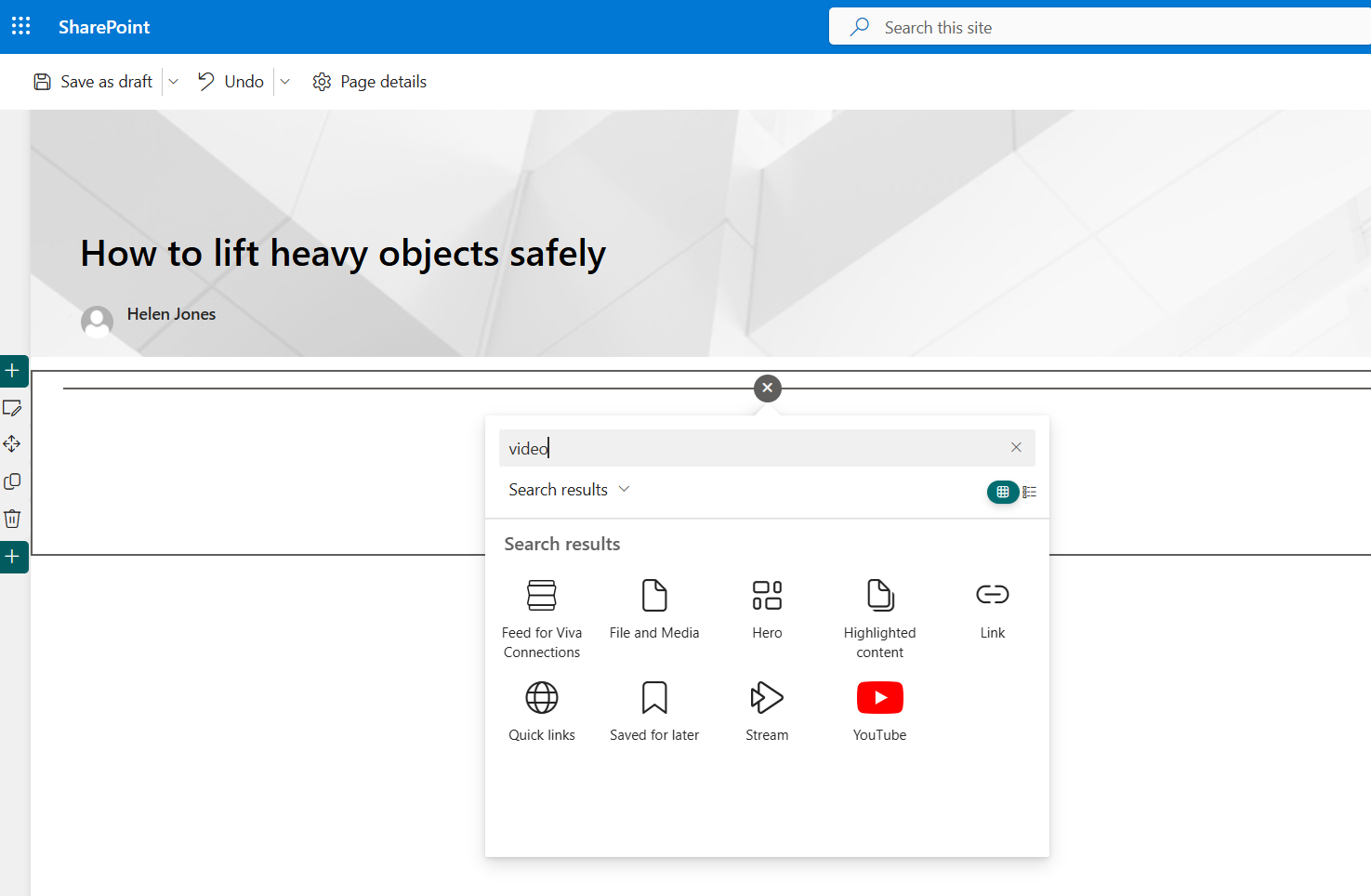
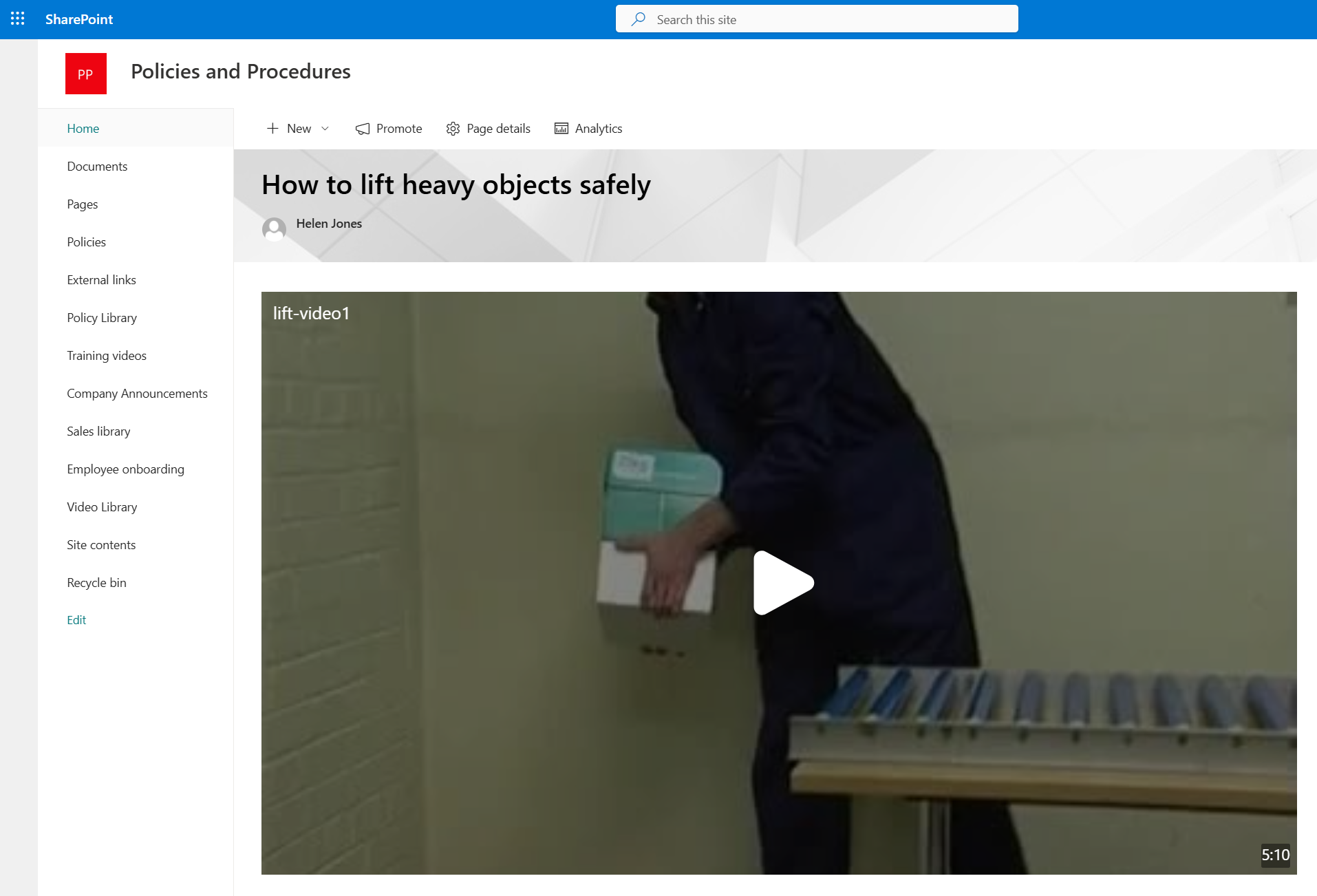
Your video will be displayed in the page.
You may also like:
November 20, 2026
November 13, 2026
How to Assign Required Policies with Microsoft Entra ID Dynamic Groups Not every employee ...
November 6, 2026
How Do You Migrate Legacy Policies into a Policy Management System? For a lot ...
October 30, 2026
Which Departments Benefit from Policy Management Software in Microsoft 365? Many organizations view policy ...
October 23, 2026
Which Departments Benefit from Policy Management Software in Microsoft 365? Many organizations view policy ...
October 16, 2026
How to Assign Required Policies with Microsoft Entra ID Dynamic GroupsNot every employee needs ...