
The Difference Between Governance Infrastructure and Governance Theater Most organizations don’t lack governance. They ...
How to Add Documents to a SharePoint Document Library
DocRead for SharePoint is the only policy management software that integrates straight into SharePoint and allows compliance professionals to distribute and track their policies and procedures.
When speaking with customers, I often need to supply them with quick “how to” guides that help remind them how to do some of the most common tasks required to be a skilled DocRead administrator.
This post shows you how to add a document to a SharePoint 2010 document library.
1. Within ‘Site Actions’, select ‘View All Site Content’.
2. Select the Document Library that you enabled in the previous step which contains the required documents.
3. Select ‘Add Document’.
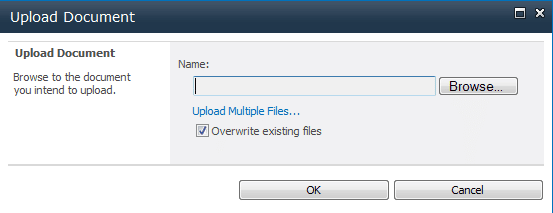
4. Use the ‘Browse’ button to navigate to the document you wish to upload and click ‘OK’.
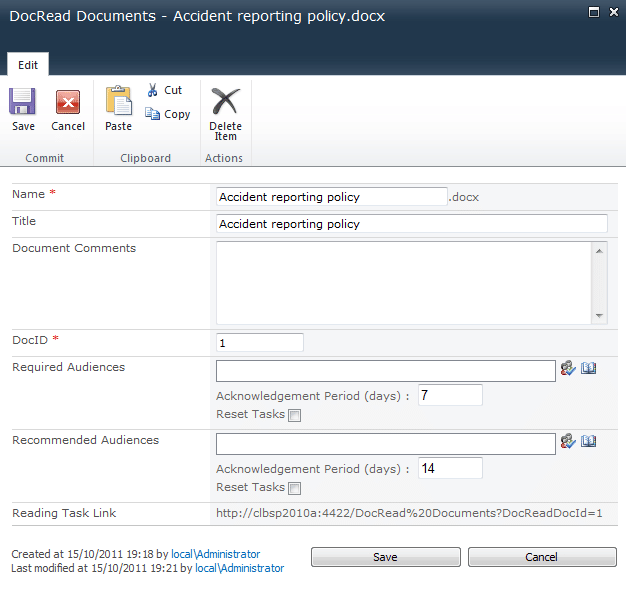
5. Input (or edit for an existing document) information about the document.
The Difference Between Governance Infrastructure and Governance Theater Most organizations don’t lack governance. They ...
The Difference Between Governance Infrastructure and Governance Theater Most organizations don’t lack governance. They ...
The Difference Between Governance Infrastructure and Governance Theater Most organizations don’t lack governance. They ...
The Difference Between Governance Infrastructure and Governance Theater Most organizations don’t lack governance. They ...
The Difference Between Governance Infrastructure and Governance Theater Most organizations don’t lack governance. They ...