Home > DocRead > Screenshots

DocRead Screenshots


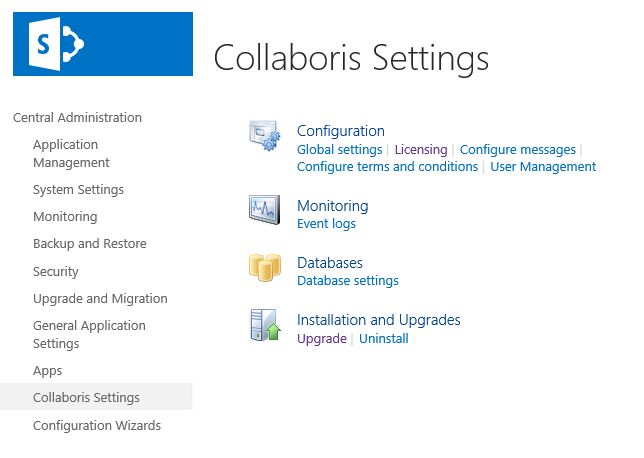
DocRead menu in SharePoint Central Administration


DocRead integrates seamlessly within SharePoint
(click to enlarge)

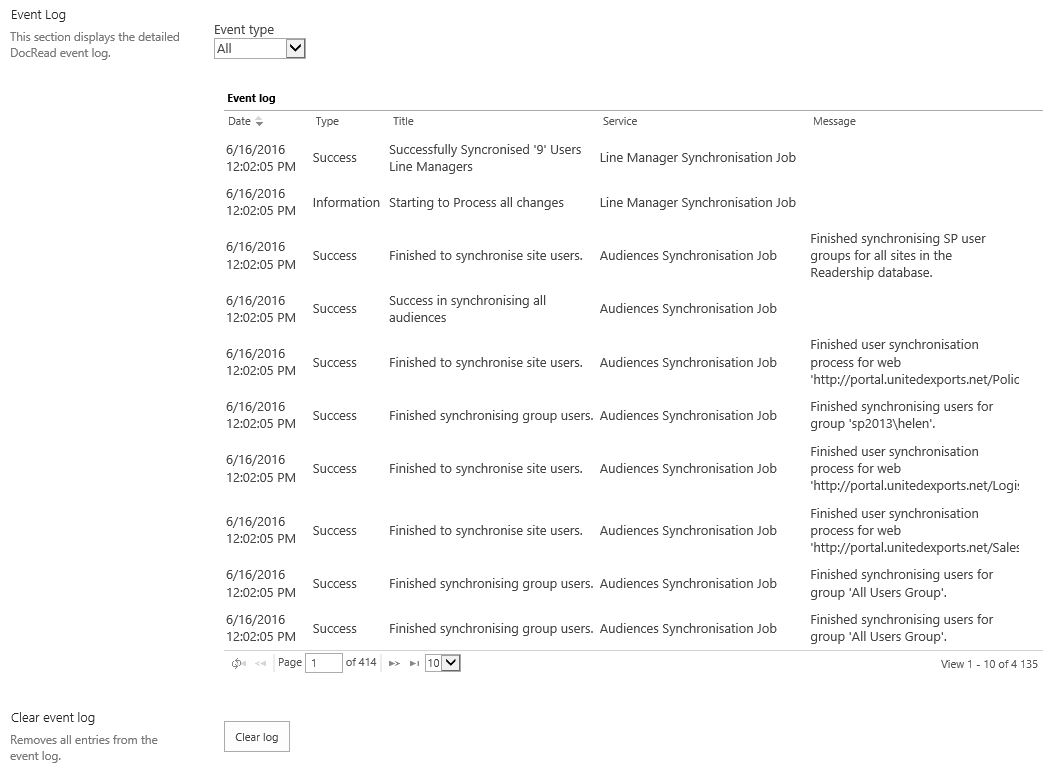
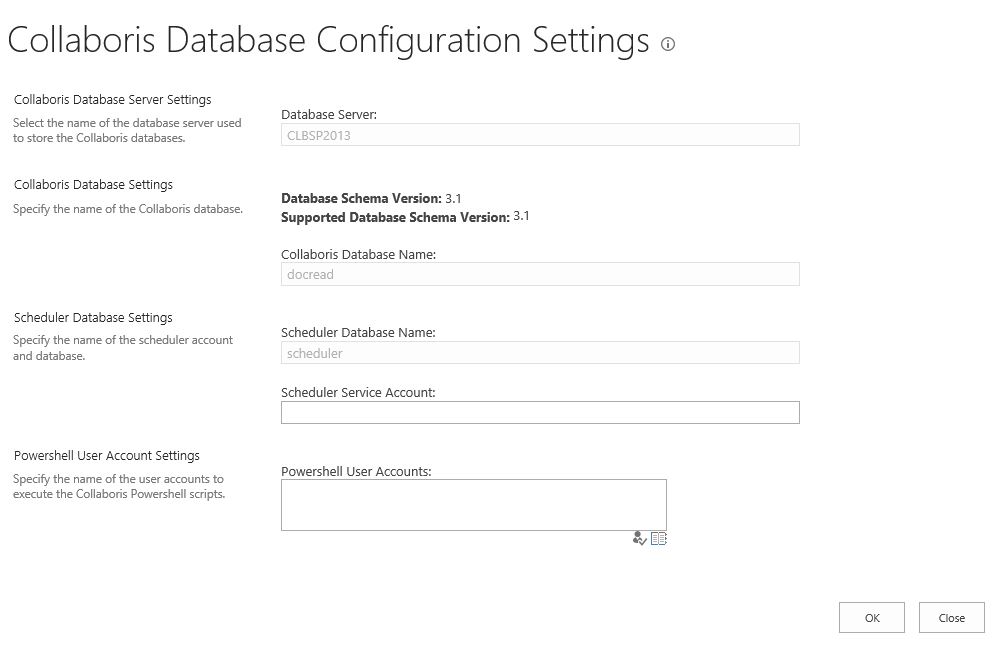
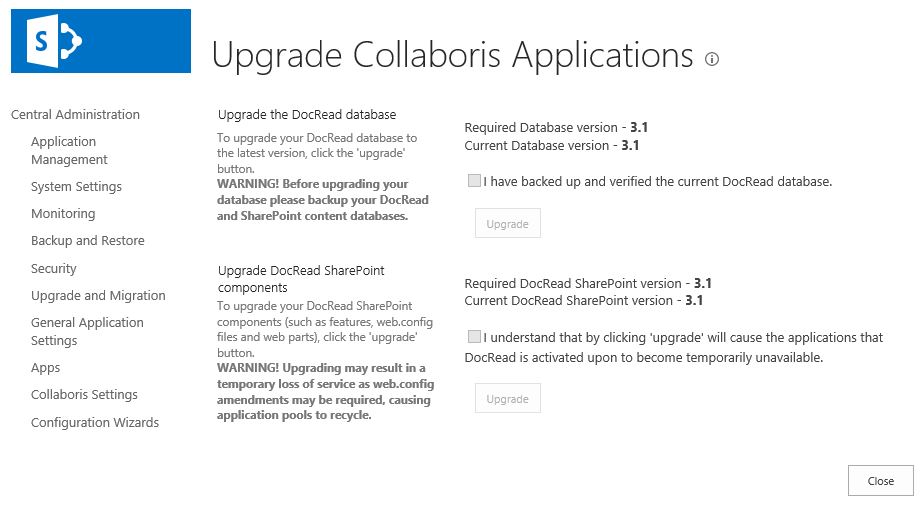
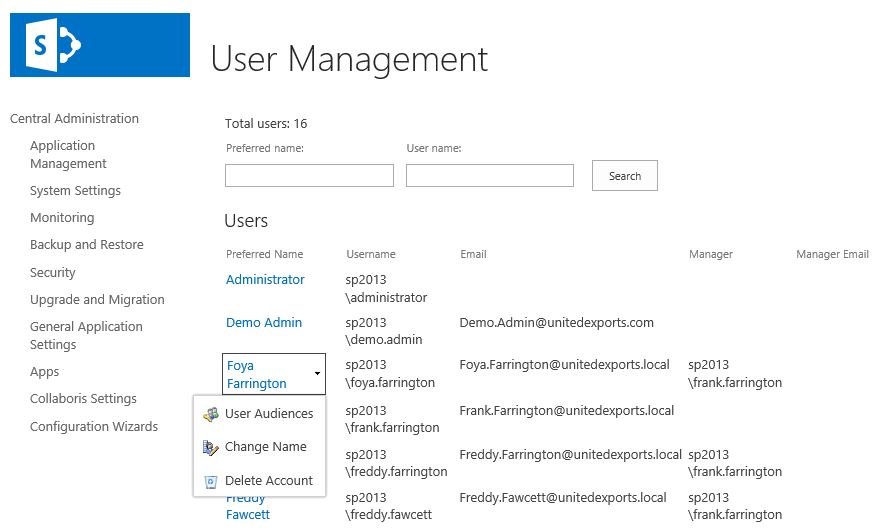
Once you have successfully downloaded and installed DocRead on your SharePoint Farm there is a new set of menu items that allows you to create a database, configure messages, select which web applications can use DocRead functionality, view event logs and also configure the terms and conditions that are presented to the user.

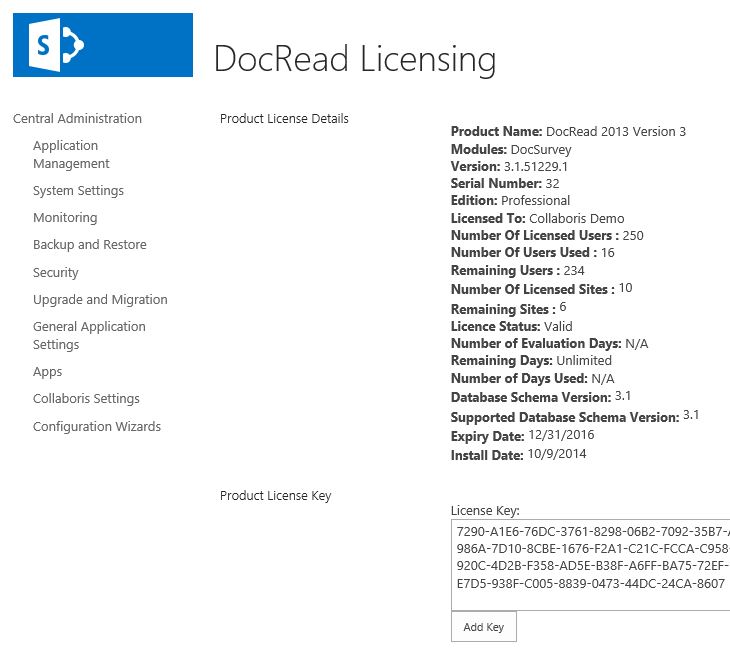
In addition to this, there is an easy to use licensing screen making it simple to add more CALs (Client Access Licences) to DocRead as your organisation requires them.


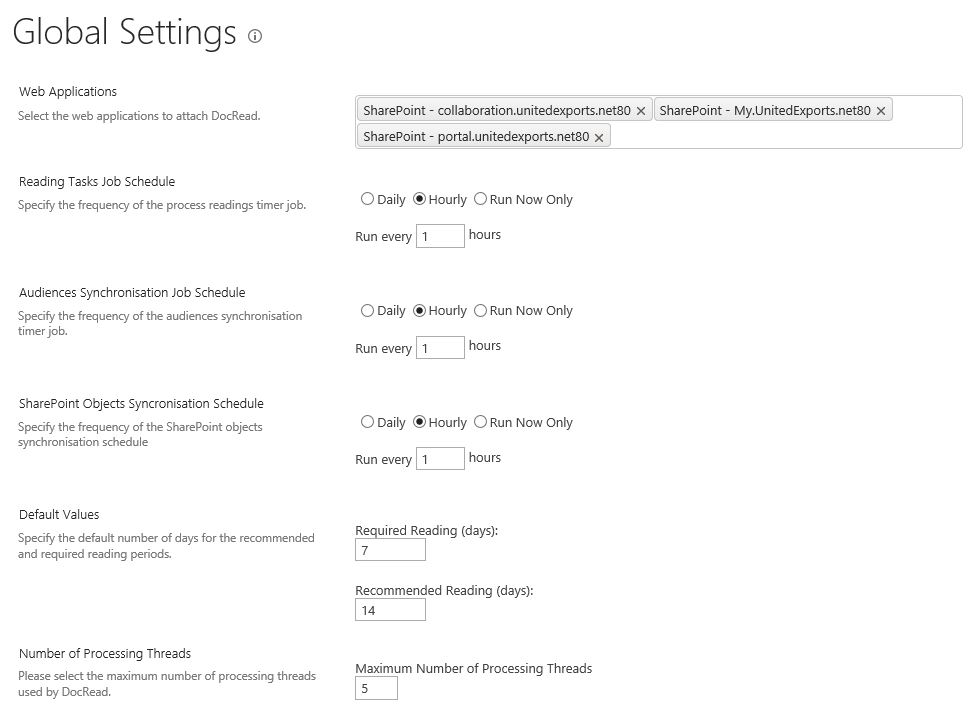
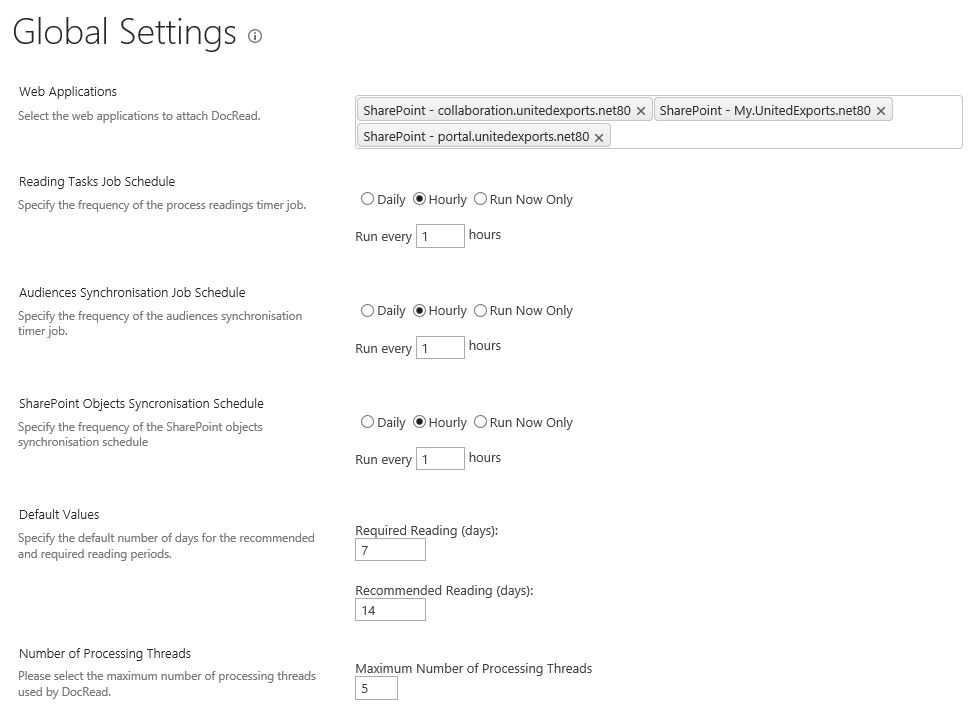
DocRead Readership Global Settings Page in SharePoint Central Administration


DocRead Readership Global Settings page in SharePoint Central Administration
(click to enlarge)

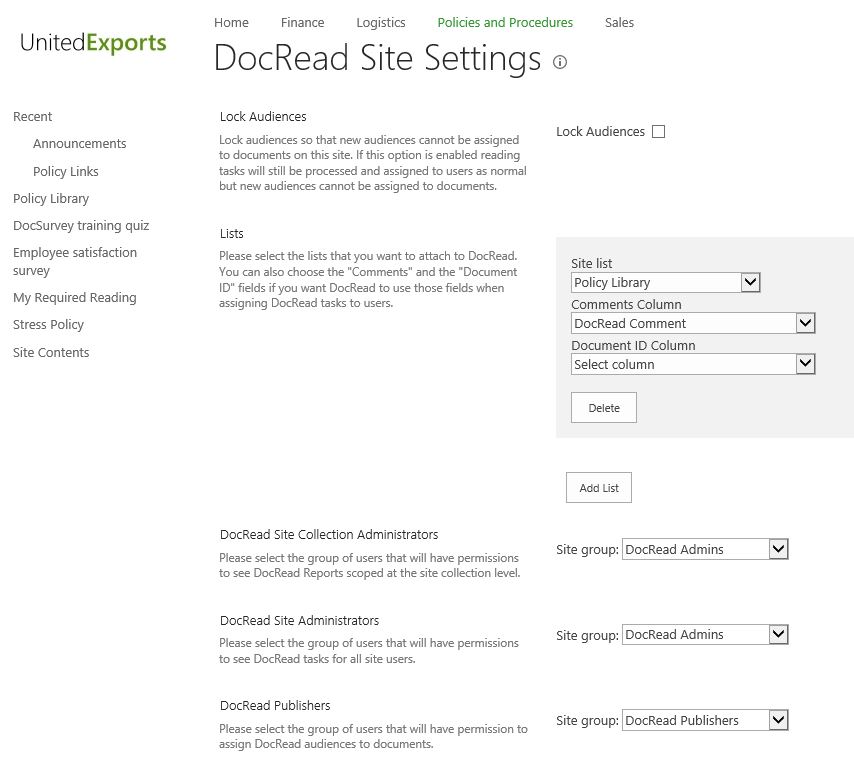
The 'Global Settings' screen is only accessible from Central Administration. In this screen you can specify which SharePoint web applications DocRead will be attached to. The ability to select which web applications DocRead can be used on allows you complete control over who sends documents to be read and acknowledged by your SharePoint users.

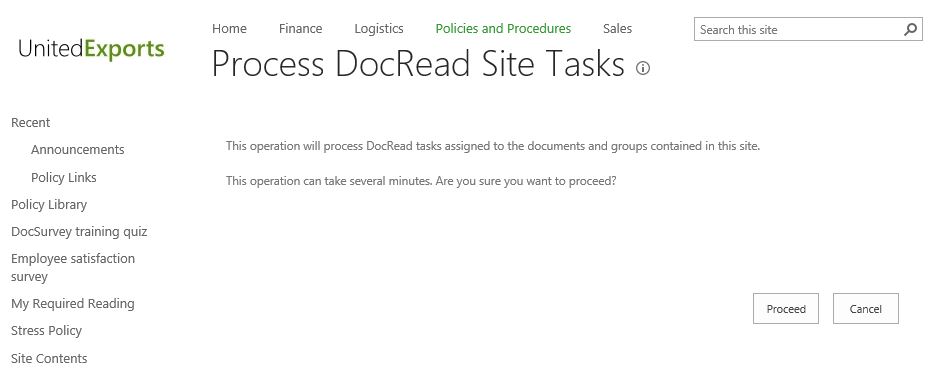
DocRead creates three SharePoint timer jobs that are used to process reading tasks. This allows DocRead to scale to tens of thousands of users, without seriously impacting the performance of your Farm. The timer jobs not only look for new documents that need acknowledging, but also monitor for new users entering or leaving your SharePoint Groups and Audiences. This is hugely powerful as it means that once a document has been targeted to an audience, DocRead will automatically send reading tasks to new users within the group without you having to do a thing.


Adding a Document to a DocRead enabled Document Library


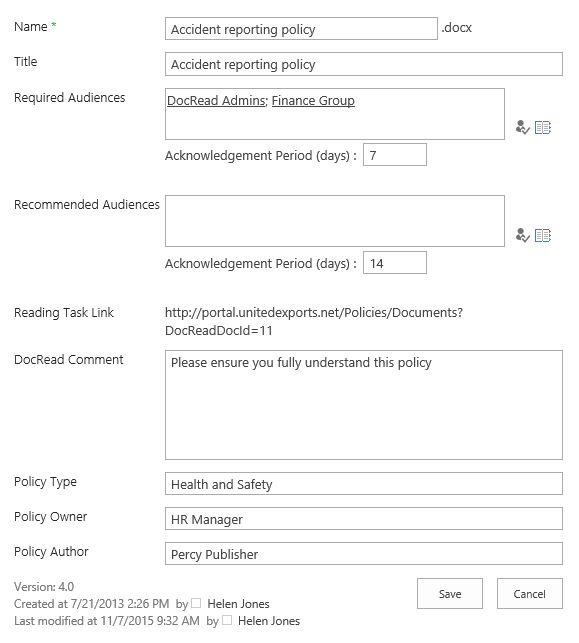
Adding a document to a DocRead enabled library
(click to enlarge)

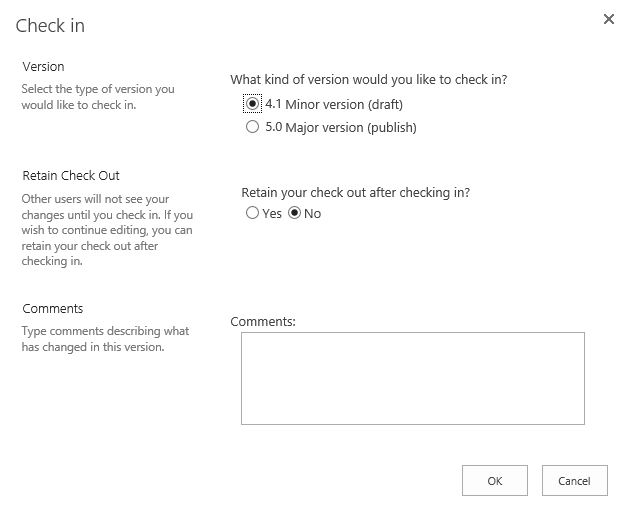
Uploading a document to a DocRead enabled document library works in exactly the same way as adding any document to any SharePoint library.

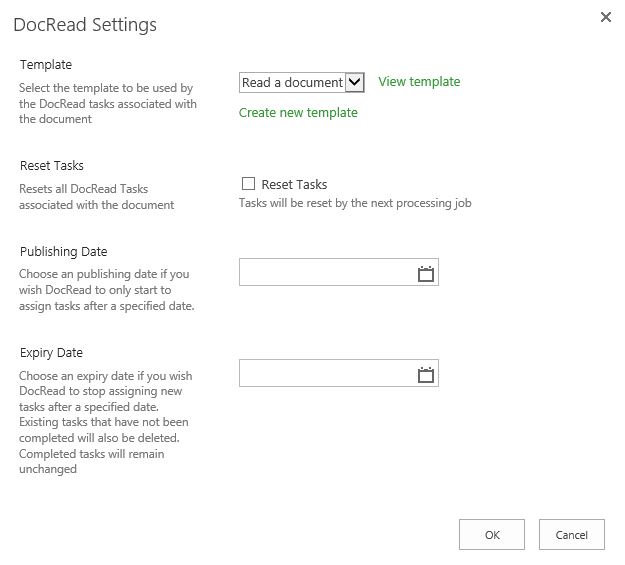
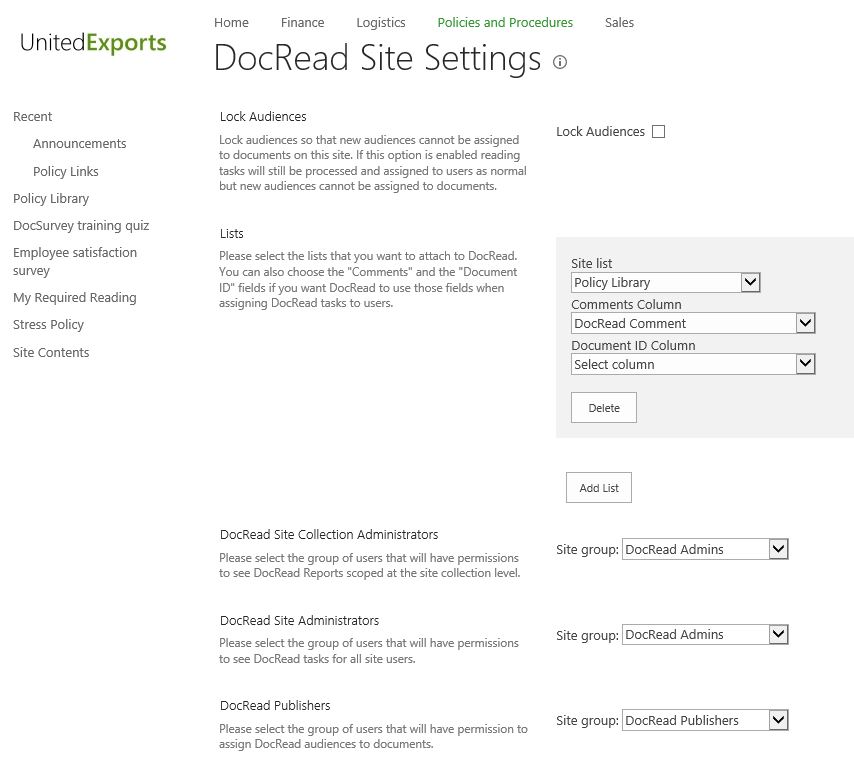
DocRead simply adds three new sections at the bottom of the 'add document' screen.

You just select which SharePoint group or audience you wish to target the information to and how long you want to allow them to read it.

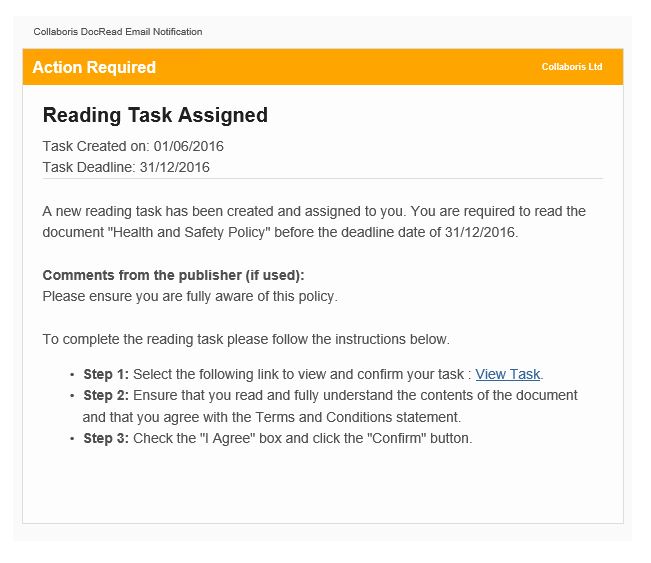
If DocRead is intended to be used as a compliance tool for requesting readership confirmation on a particular document then you should select groups or audiences in the ‘Required Audiences’ box. 'Required' tasks fall overdue if they are not completed by their due date and email reminders may be sent via the Collaboris Notification Scheduler.

‘Recommended Audiences’ should be used where proof of compliance is less important as tasks will not be flagged as overdue, nor will reminders be issued.

The reading task link shown at the bottom of the page can be used if you want to send a direct link to the document.


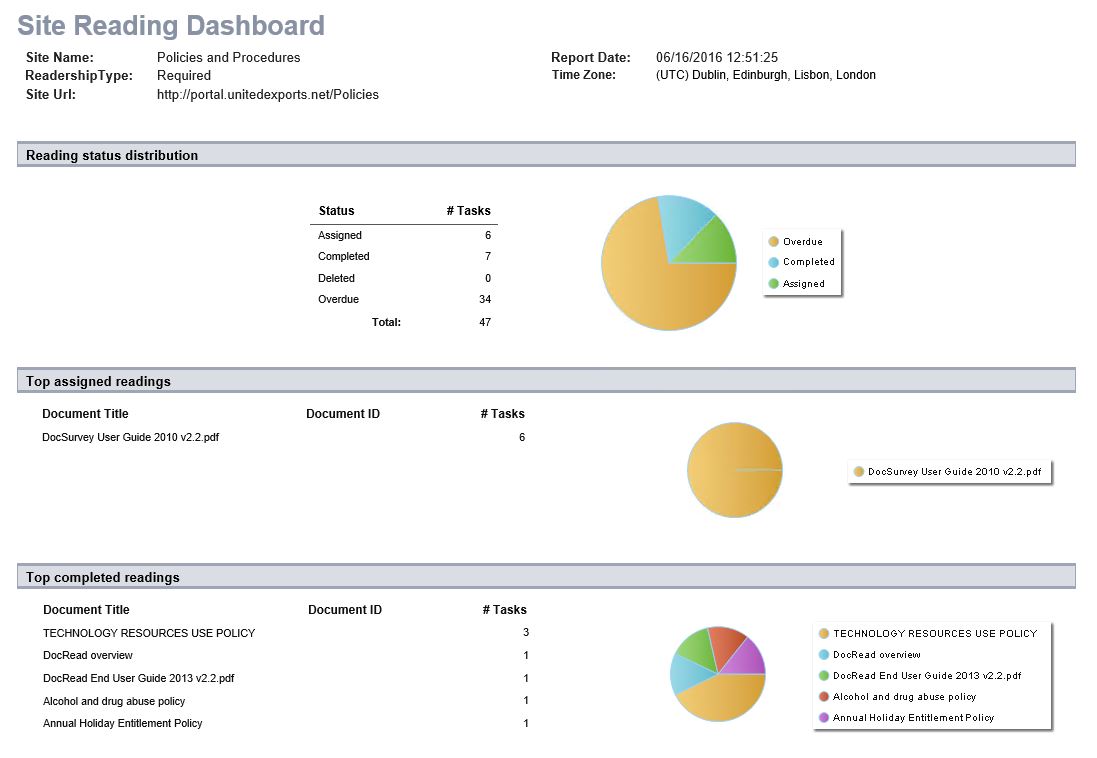
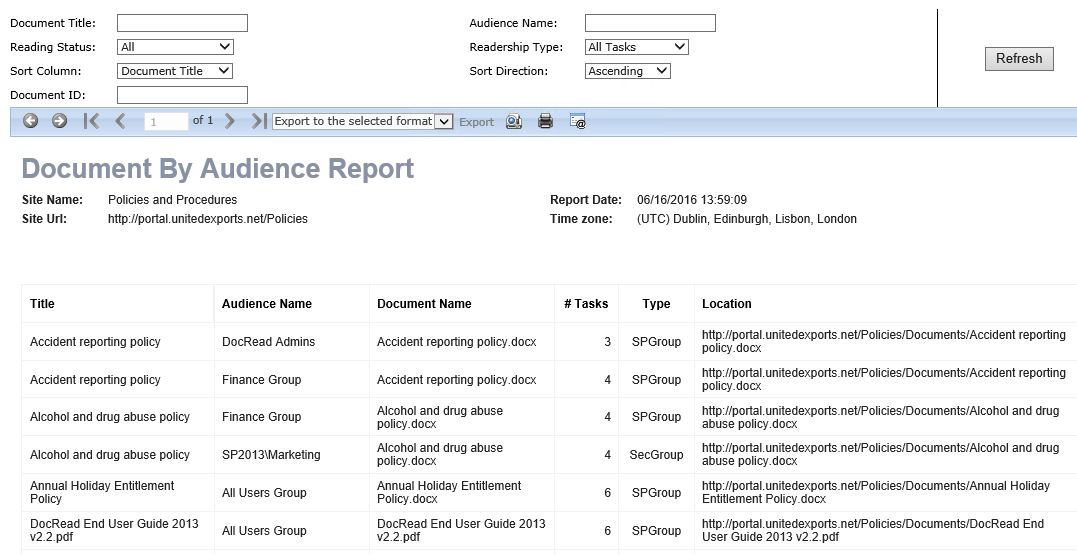
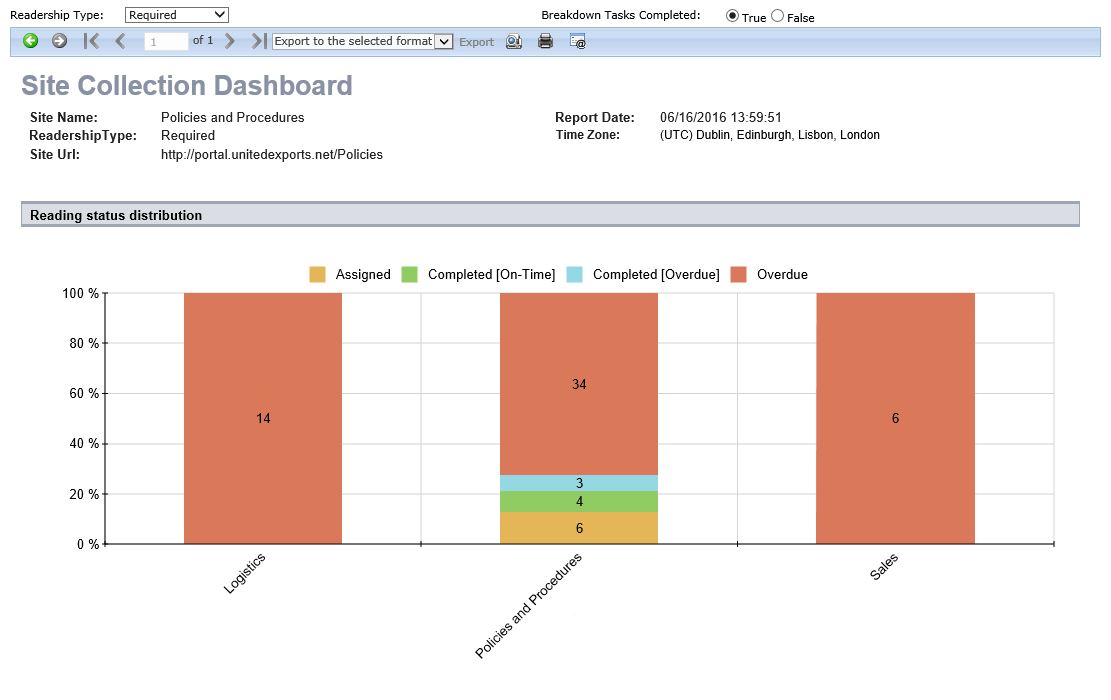
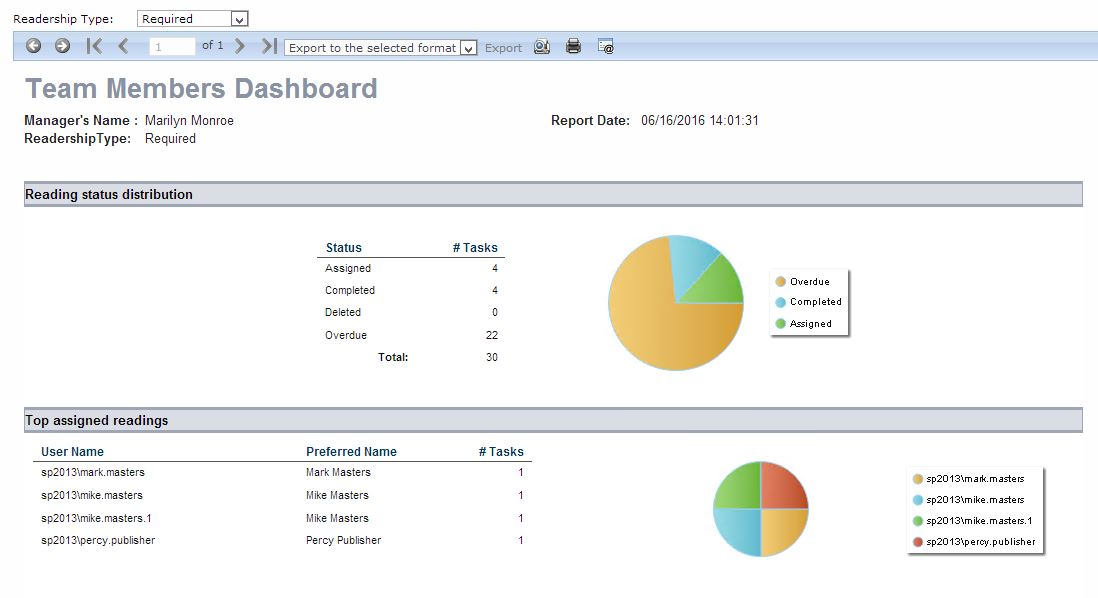
DocRead Reporting


(click to enlarge)

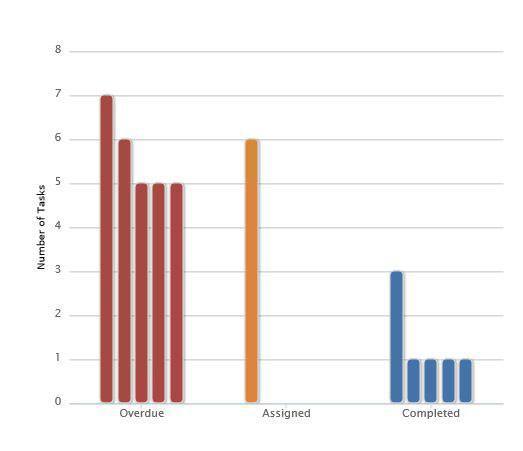
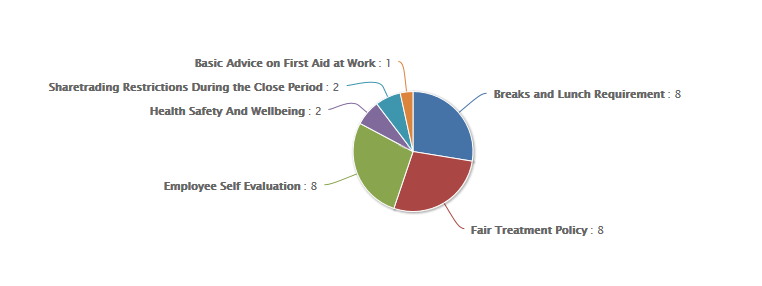
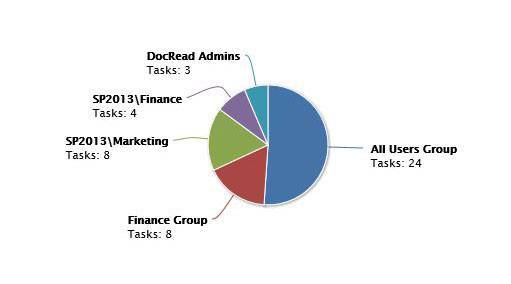
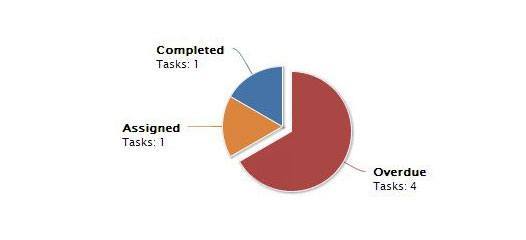
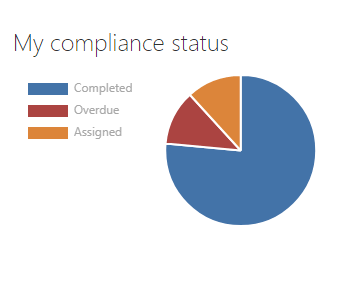
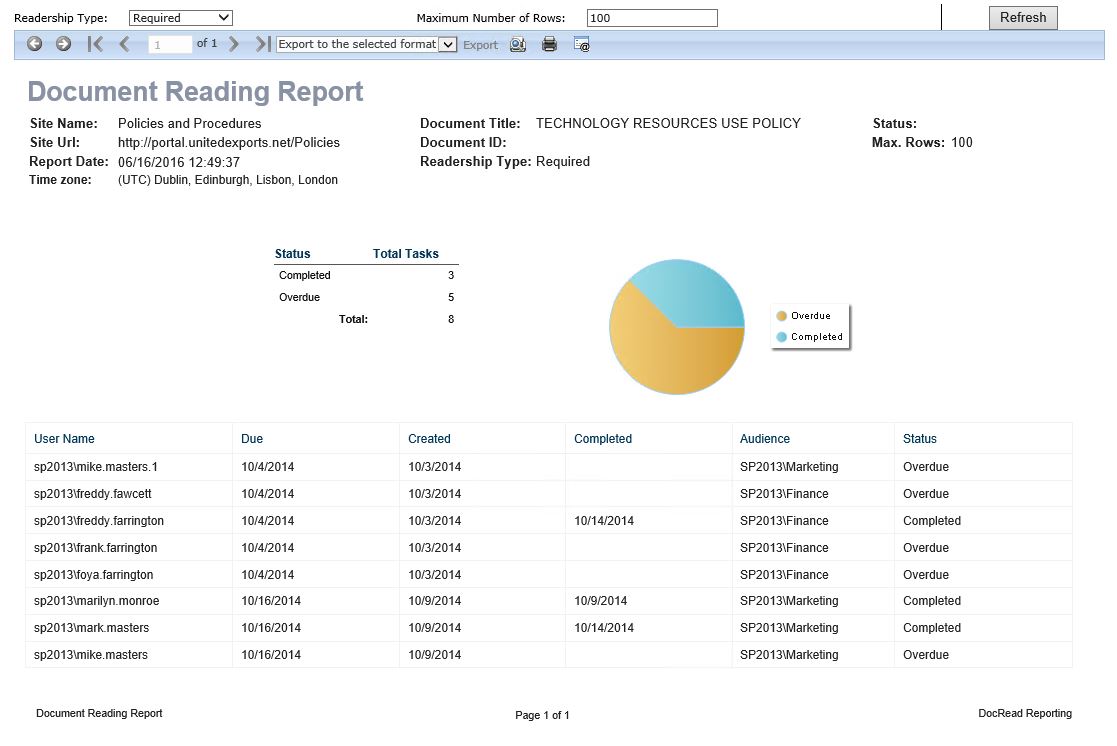
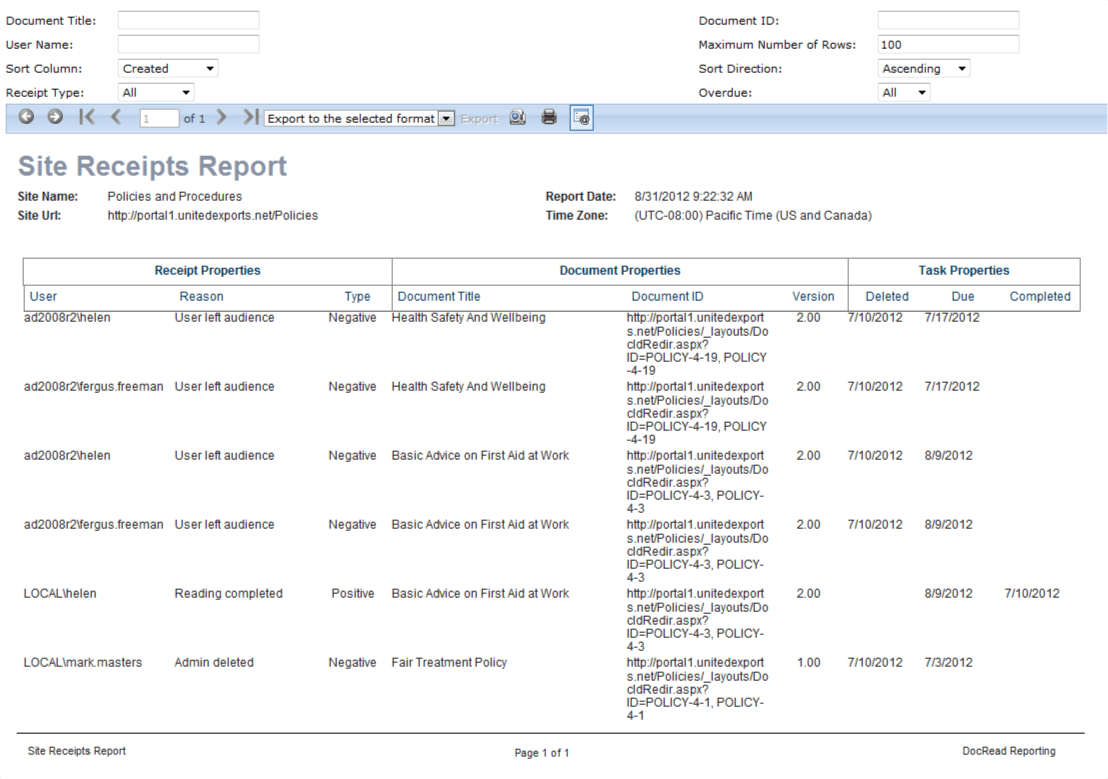
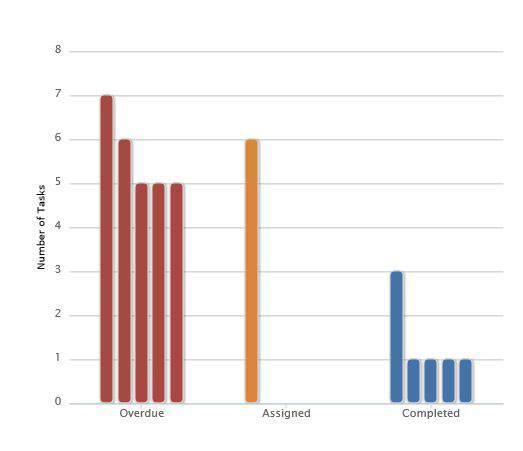
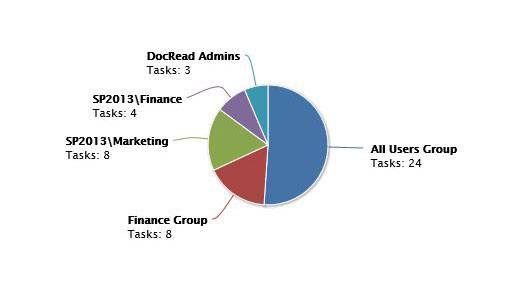
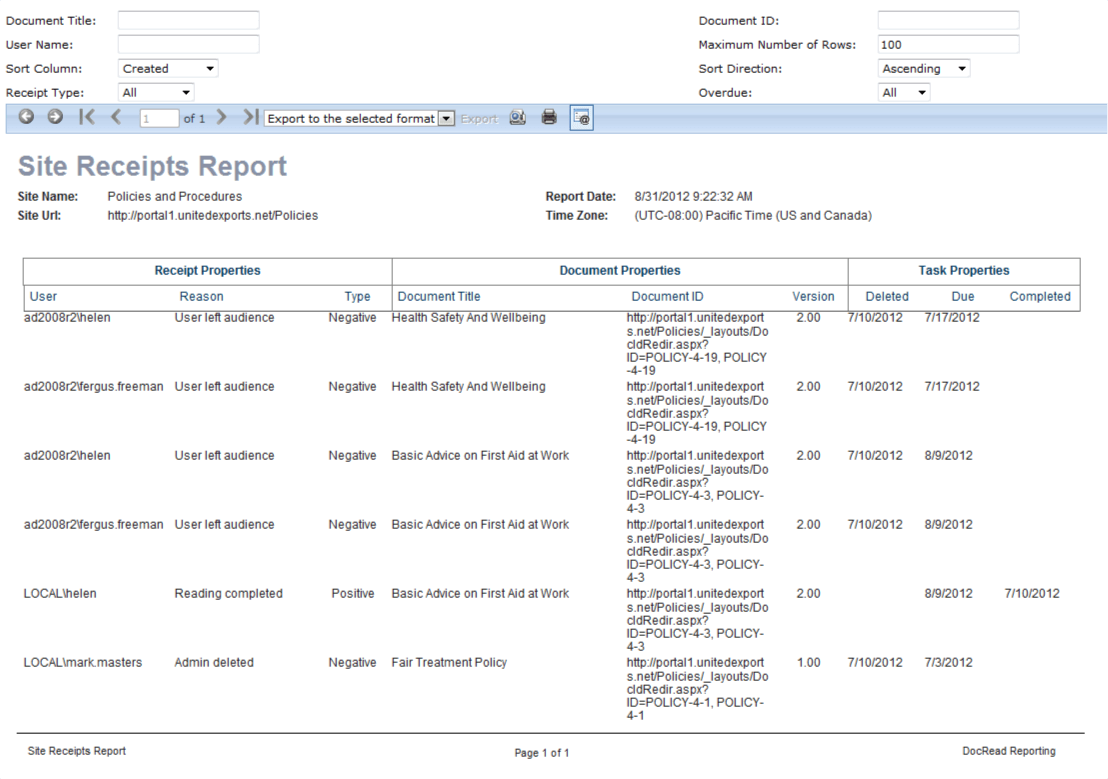
DocRead reporting gives enhanced reporting functions and allows you to download reports into various formats including Excel, PDF and CSV files.

Drill down functions allow you to see more details for an individual reading assignment.

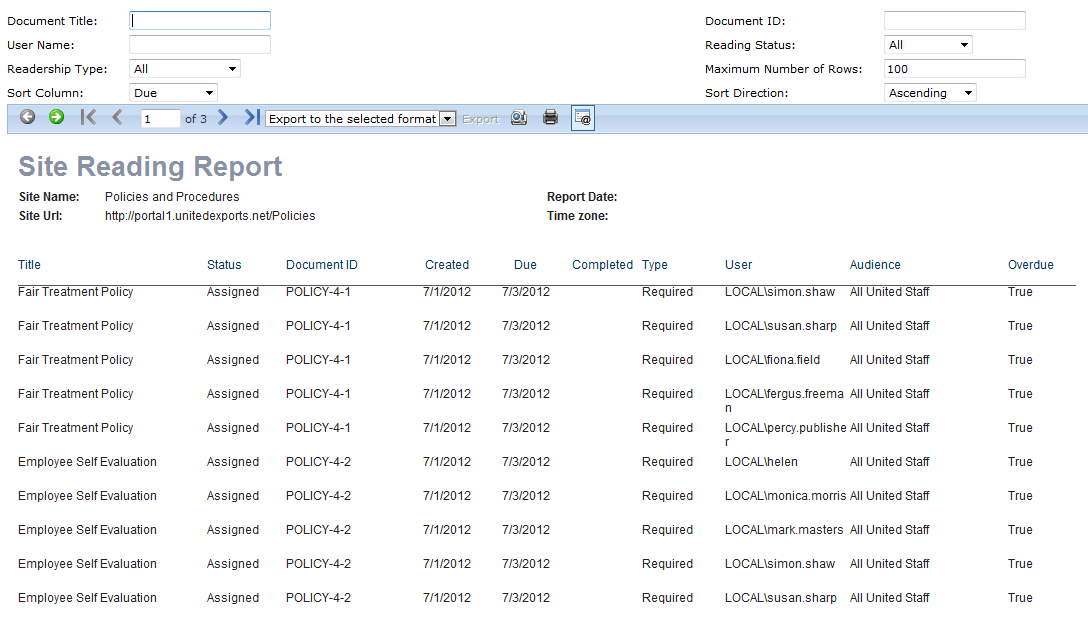
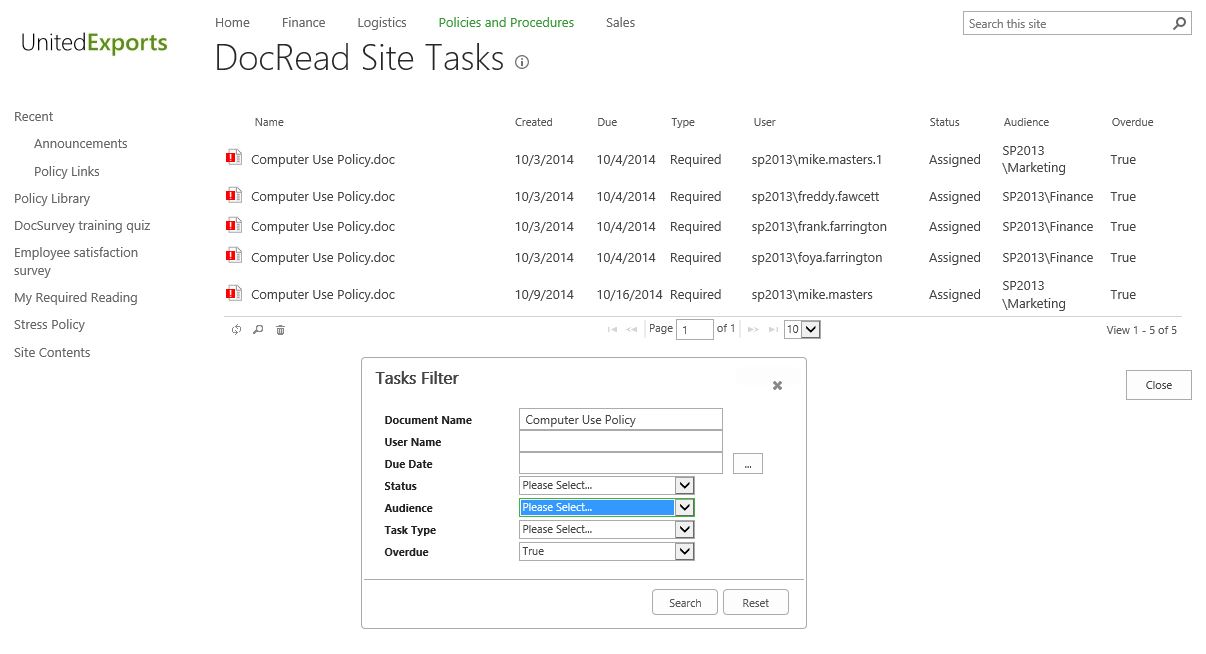
The Site reading report can be searched or sorted to get reading task details by individual employees.


Reading window viewed by DocRead user


DocRead report showing reading statistics across all anti-bribery documents.Reading task window showing overdue tasks
(click to enlarge)

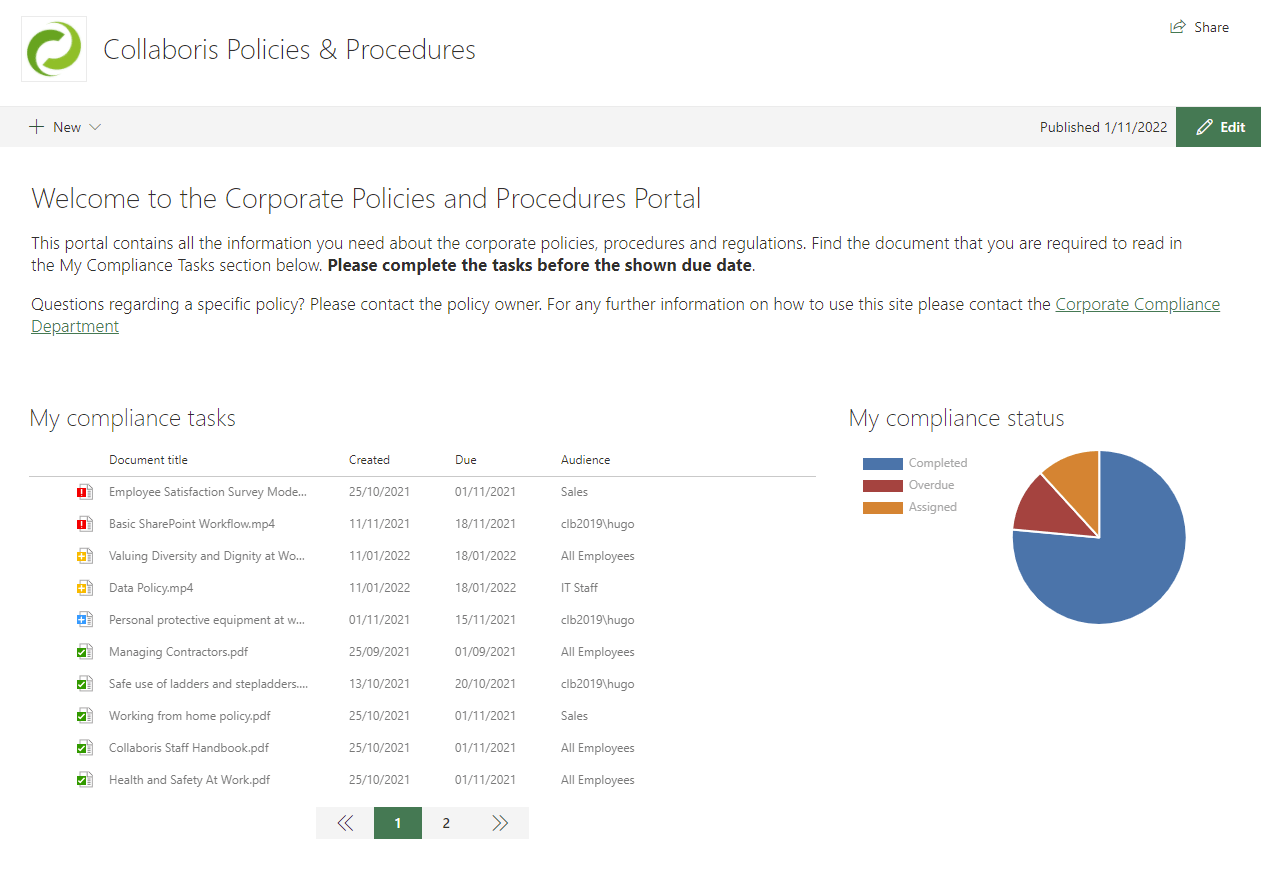
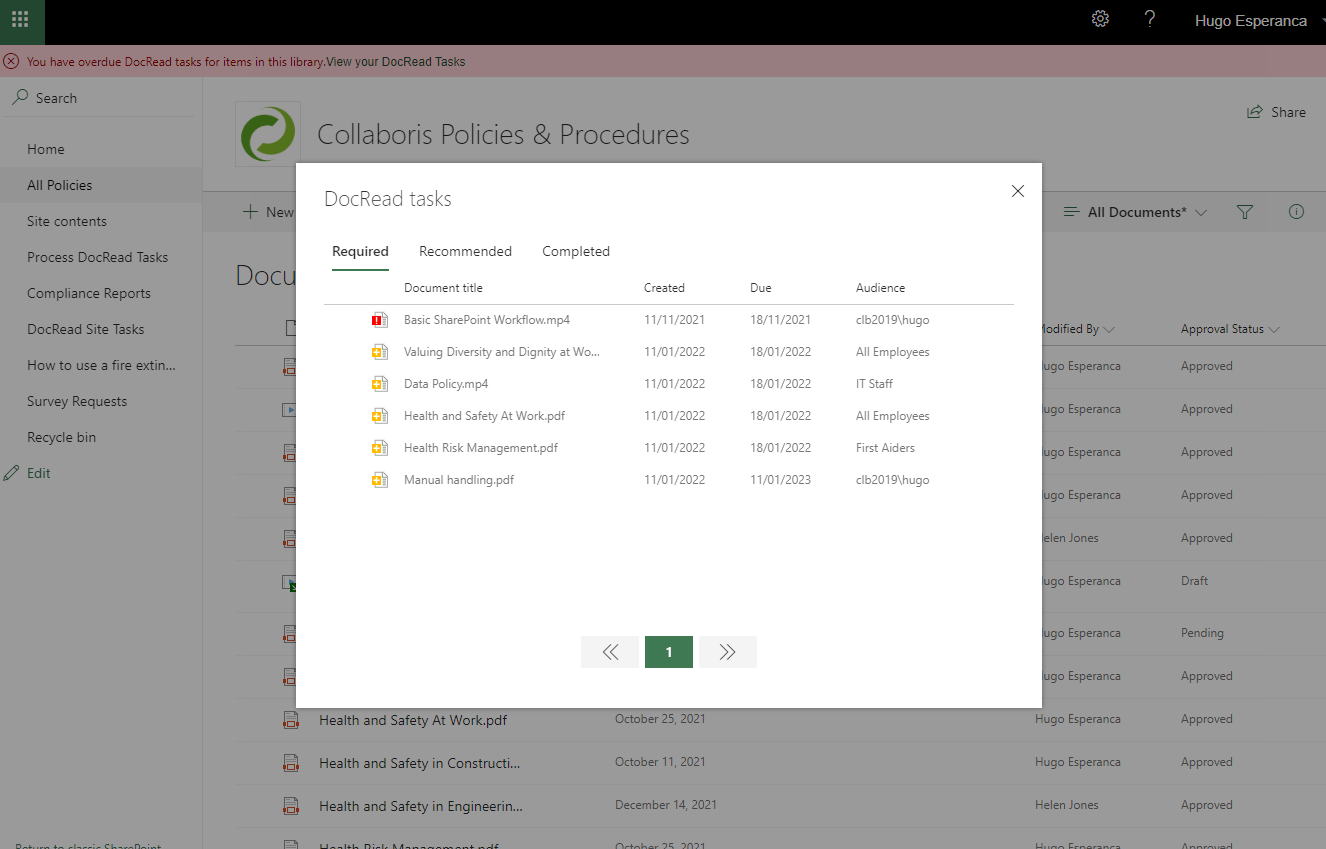
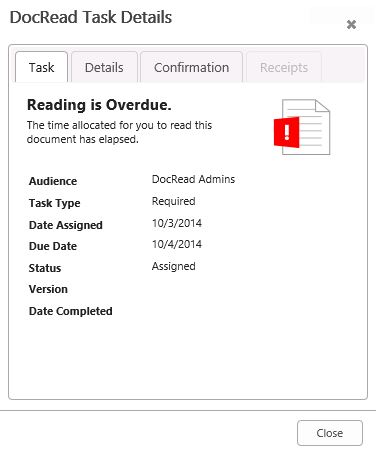
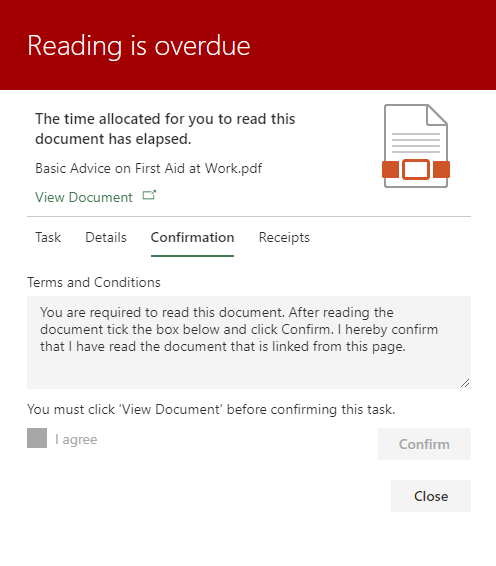
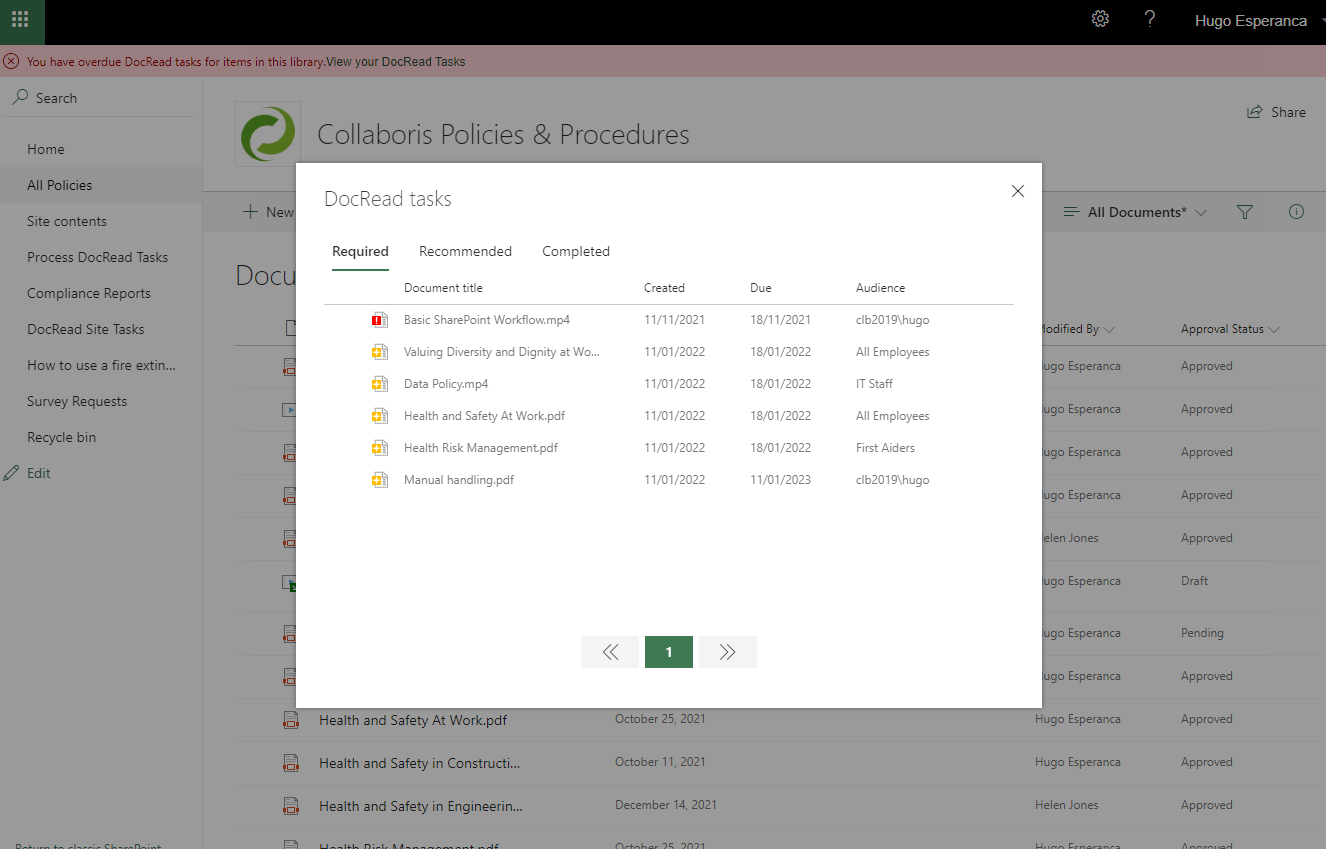
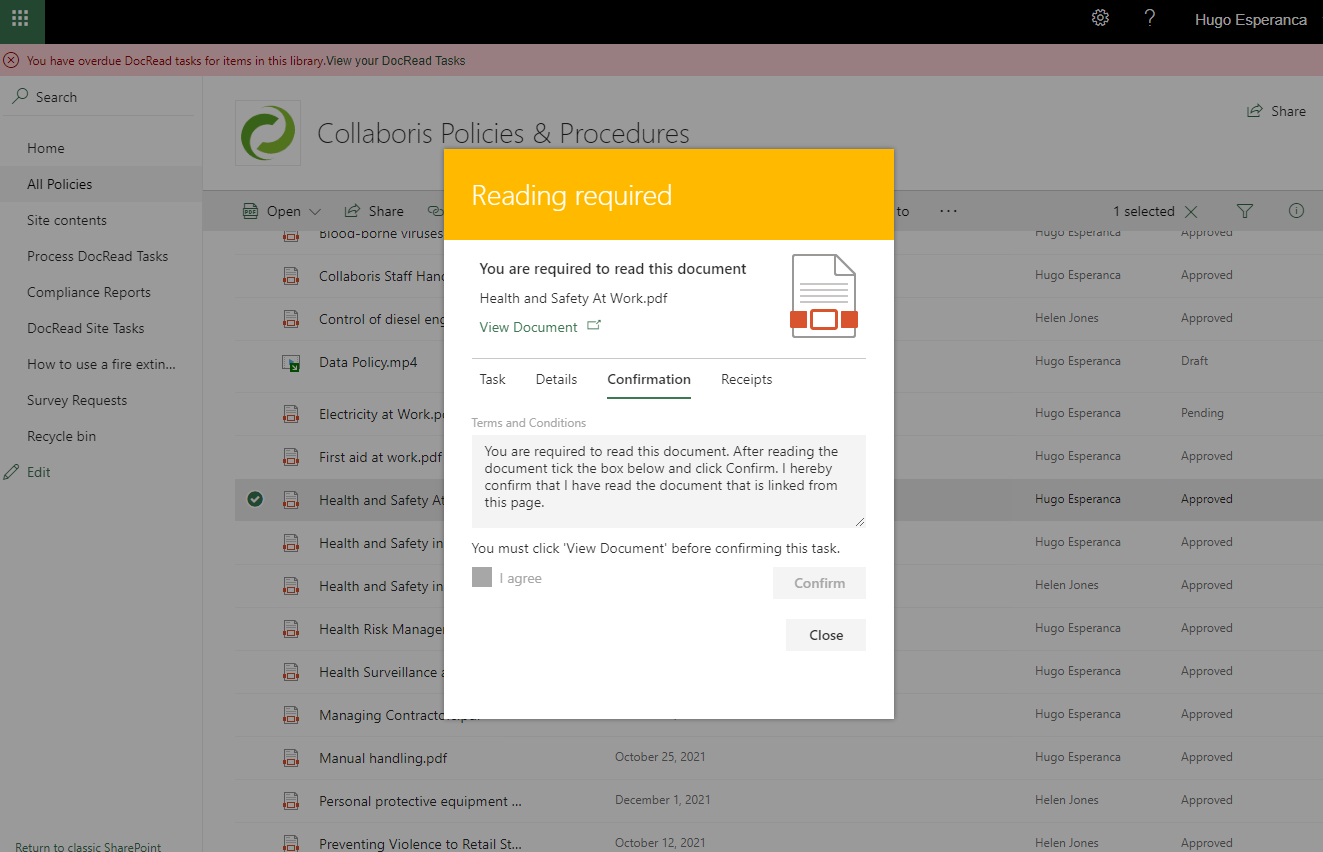
Users can view all tasks assigned to them in the reading tasks window. Either required or recommended tasks can be chosen which are then sorted by due date so overdue items appear at the top of the list and are brought to their immediate attention.

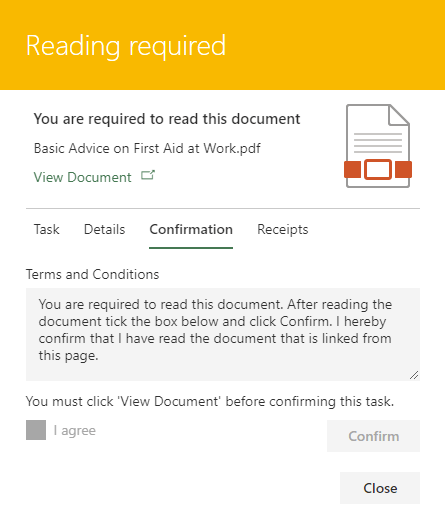
All relevant details about the task are displayed in three tabs on the right hand side of the window. A user must click on the link to open the document and once they have read its contents they must click 'I agree' to accept that they agree with the document's contents.

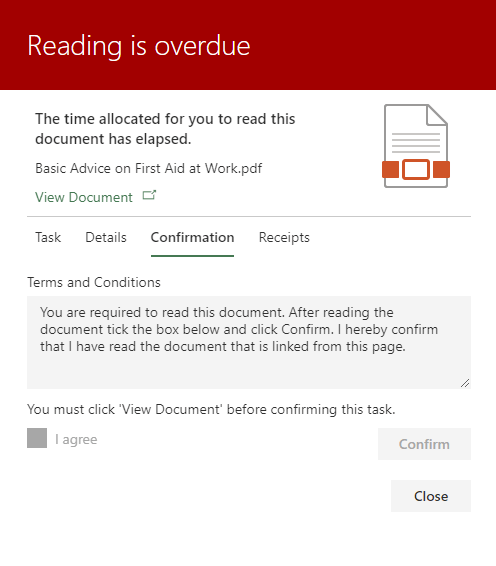
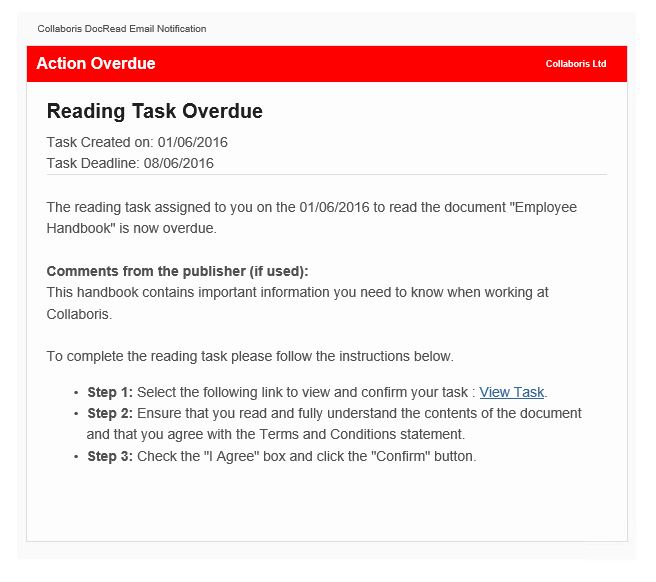
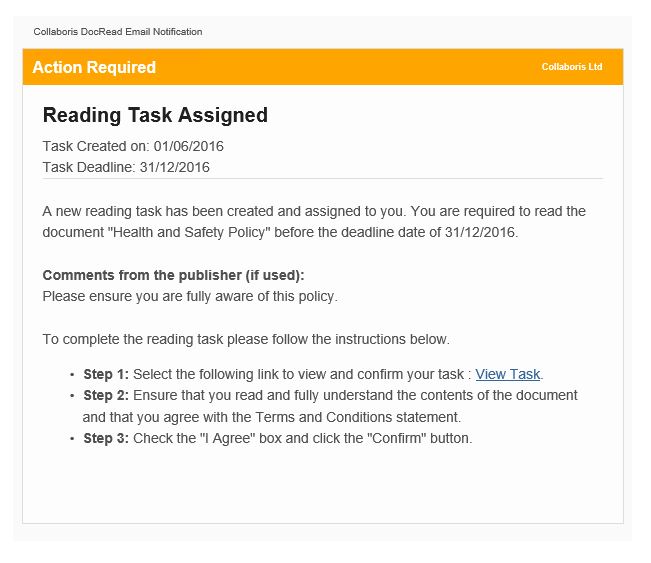
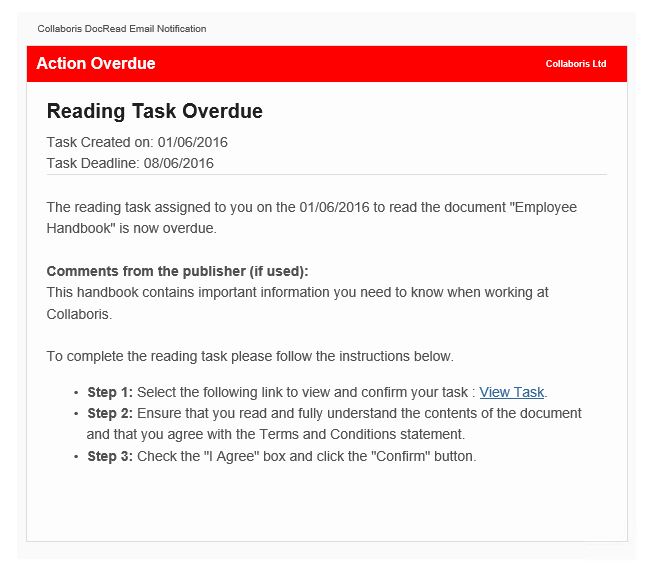
If the time allowed to comply with the task has passed, required reading tasks fall overdue and (if the Collaboris Notification Scheduler is being used) email reminders will be sent to those users who have not yet completed the task.


User self certifies acceptance / completeness of task


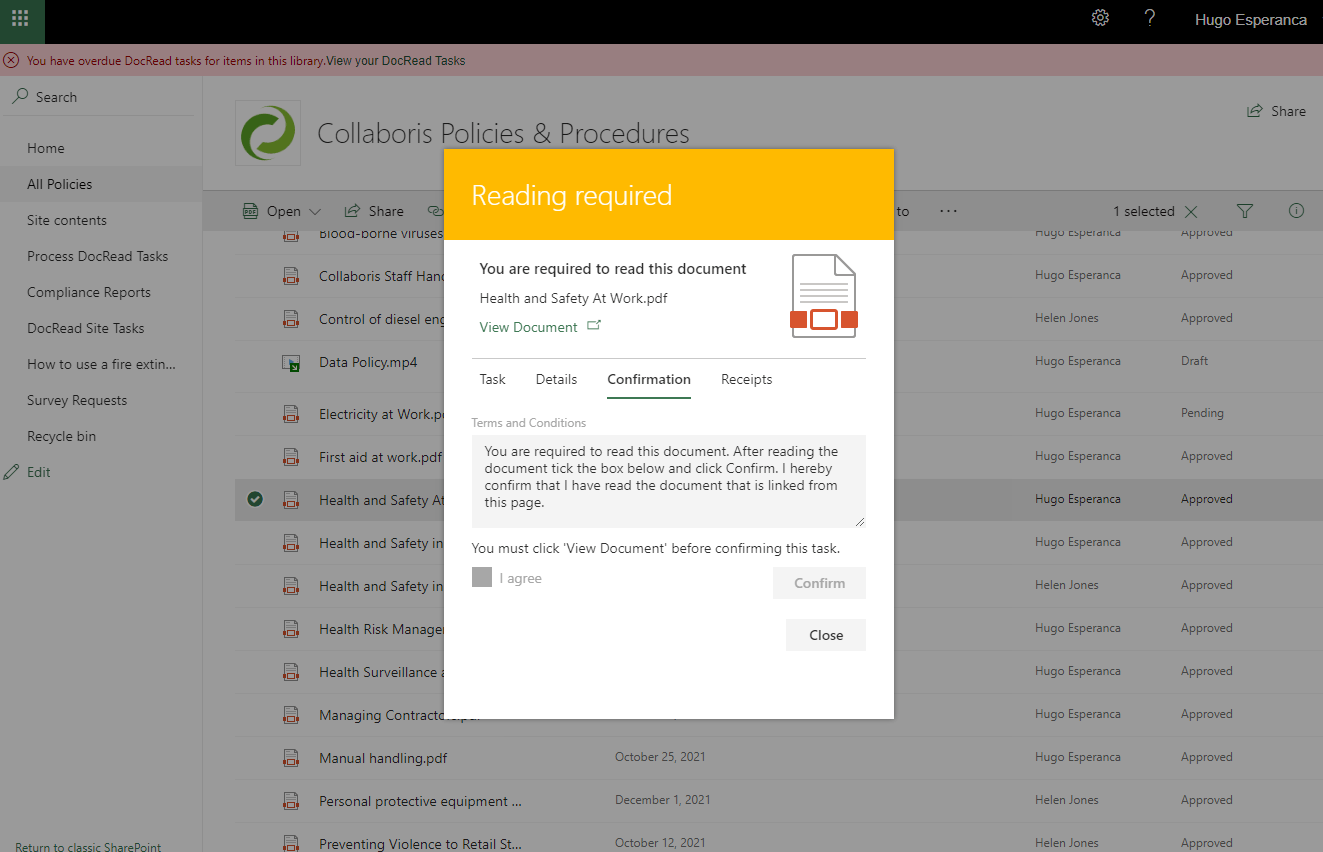
DocRead Read and Acknowledge tab for an anti-bribery policy
(click to enlarge)

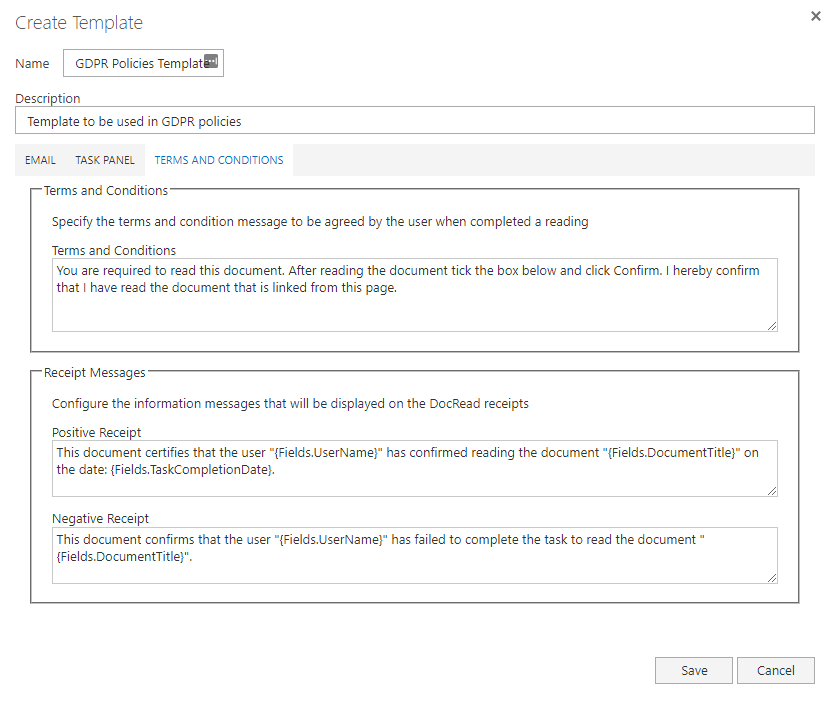
After a user has viewed the task details, followed the link to the associated task, and completed the requirements, they must read the terms and conditions statement, check the 'I agree' box, then click the confirm button to complete the task.

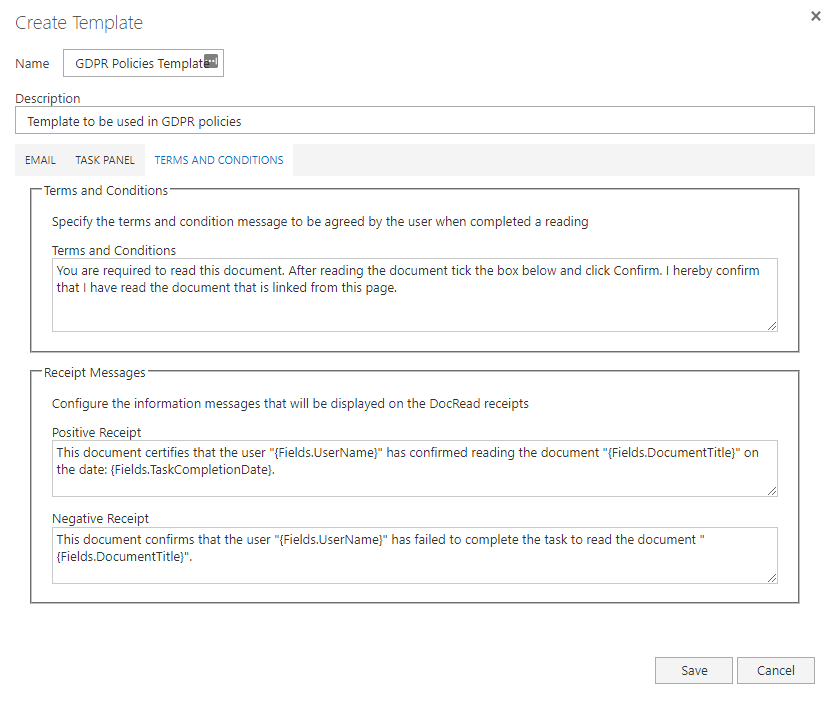
The terms and conditions statement is fully configurable and can be amended to suit your business circumstances. The same message will be displayed for each compliance task.

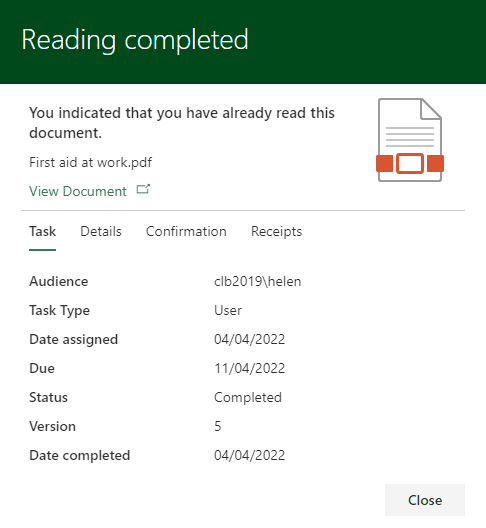
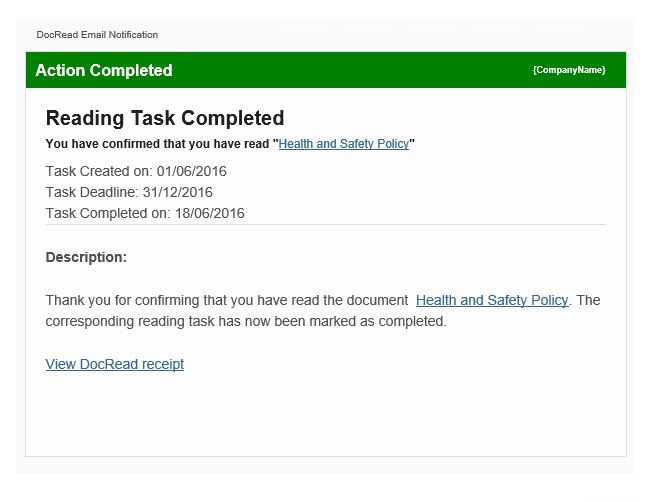
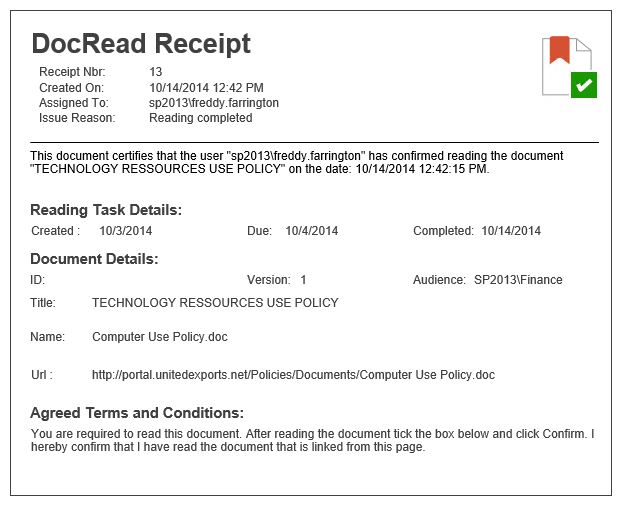
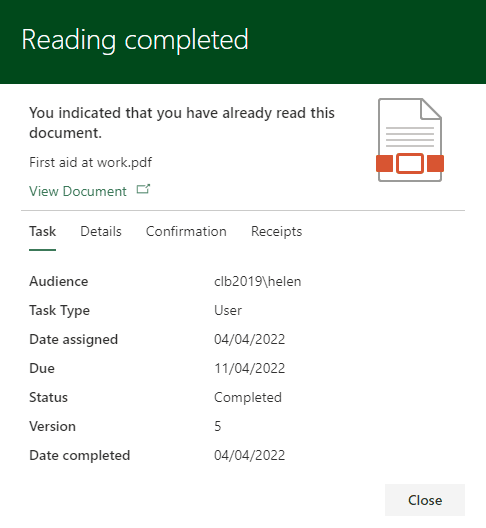
Once the task is completed a positive reading receipt is issued and securely stored within a database (see below for more details).


Proof of policy compliance / acceptance


(click to enlarge)

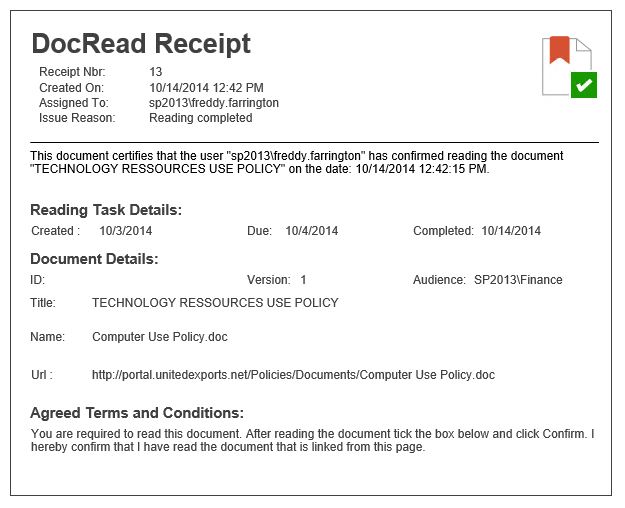
After the user has agreed with the reading task terms and conditions statement and confirmed that they have completed the task, a reading certificate is issued and the relevant details are stored in a secure database. We refer to these as 'positive receipts' because they confirm the completeness of the task.

The user also has the option to print or save the details for their records.

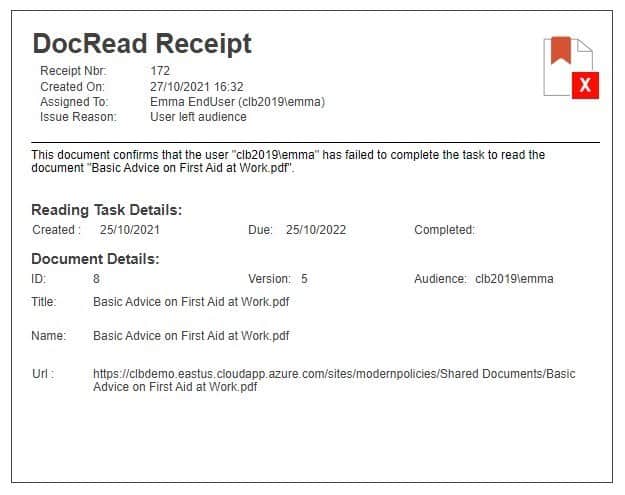
Negative receipts are created if the user does not complete the task before it is deleted. These help provide full audit details in the event of a reading task being deleted for any reason. If this should occur permanent records of exactly who was sent the task along with either a positive or negative receipt for each individual gives full traceability of the completeness of the task.

Negative receipts could be generated for legitimate business reasons - for example an individual could move departments, be promoted or leave the company which could mean that the task is no longer relevant to them, and they are no longer required to complete it.