
DocRead & DocSurvey On-Premises Video Center
Feel free to share these videos with your technicians and staff. As new features are added you will find webcasts here. For technical support, please e-mail support@collaboris.com

Note: DocRead videos for Office365 can be found here
Overview
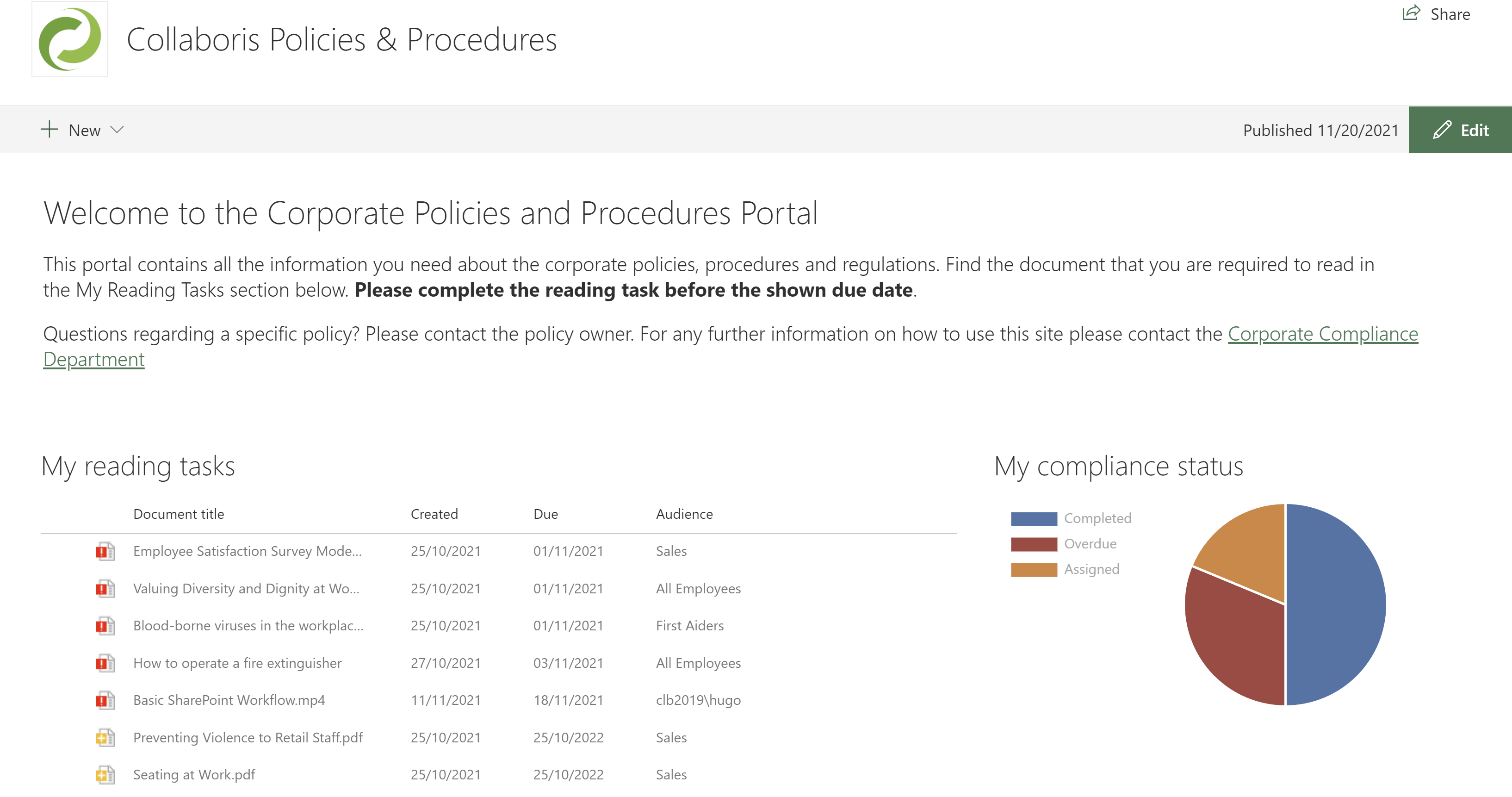
How DocRead and DocSurvey make compliance simple
Short 11 minute video showing how to use DocRead and DocSurvey to target Policies, Procedures and other important content to your users.
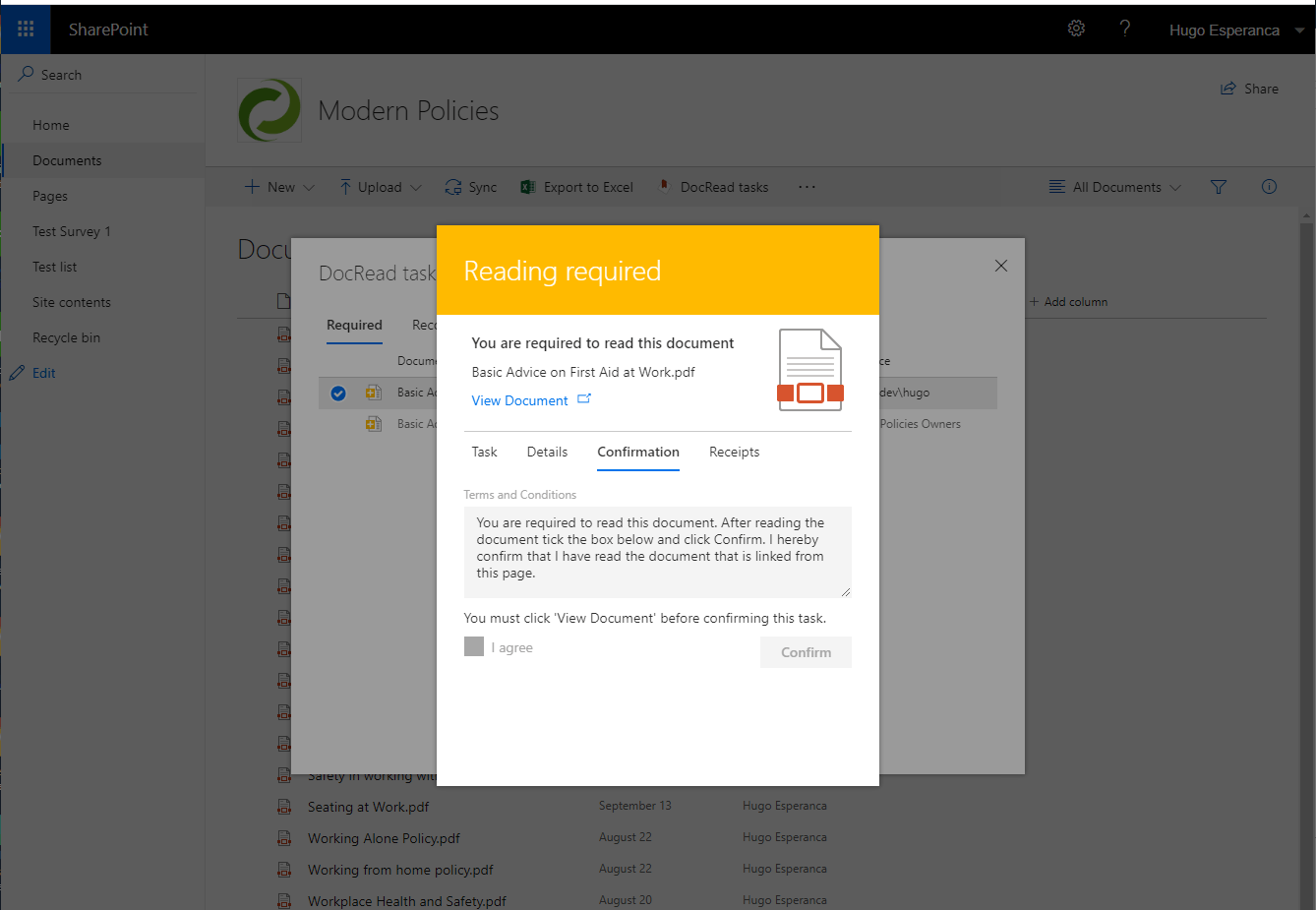
Latest DocRead and DocSurvey features overview
Overview of the latest features of DocRead and DocSurvey for end-users.
DocRead Essentials
INstallation
Kicking off our "DocRead essentials" series by showing how to install DocRead and our survey engine DocSurvey.
CONfiguration PT1 (central admin)
This video shows you how to configure DocRead and DocSurvey at the site collection level.
configuration PT2 (sites and libraries)
When you are setup in Central Admin, watch this to enable DocRead and DocSurvey on the sites you wish to use it with.
Assigning documents
This short video shows how "DocRead publishers" can target documents to a group of users so that it can be tracked and acknowledged.
Completing Tasks
This video shows how an end user can easily complete a DocRead task
ASKING FOR DOCUMENT FEEDBACK
Find out how to use DocSurvey, with DocRead to ask for feedback to a document stored in SharePoint.
Real time reporting
This video shows how to access and interpret the DocRead reporting suite.
Install the notification scheduler
This video shows how to install and configure the Collaboris Notification Scheduler to issue emails to users when tasks are assigned .
Upgrade Instructions
This video shows how to upgrade DocRead to the latest version of the software.
How do we use DocRead?
Find out how versatile DocRead is !
Watch our webcast from the Collab365.Solutions day where we show how we used DocRead to help on-board speakers for a global conference using email templates.
Make Sure your Staff are engaged
If you are specifically interested in using DocRead for compliance purposes, this session from a Collab365 Summit will really help.