
10 reasons to use SharePoint for policy management Policy management and compliance is something ...
How to target SharePoint content with DocRead
Having amazing content stored in SharePoint is great, but how do you ensure people know where to find it? Targeting SharePoint content to groups of users is easier than you may think!
This post shows how easy it is to use DocRead to target documents, or any other content stored in SharePoint. It explains how to add audiences or groups of users to a document that needs to be distributed, tracked and monitored.
Follow these steps:
Note: The information in this post relates to DocRead for on-premises SharePoint only.
Note: Only a DocRead publisher can assign user groups or audiences to a document. Permissions are granted at Site level in the DocRead’ site settings’ menu.
1. Firstly, navigate to a DocRead enabled SharePoint library and upload your document. Remember to complete all the usual check-in and publishing routines as normal. DocRead does not bypass standard SharePoint security.
If you upload your document for the first time, you will see the screen below. Otherwise, click ‘edit properties’ against an existing document in a SharePoint library to view this screen.
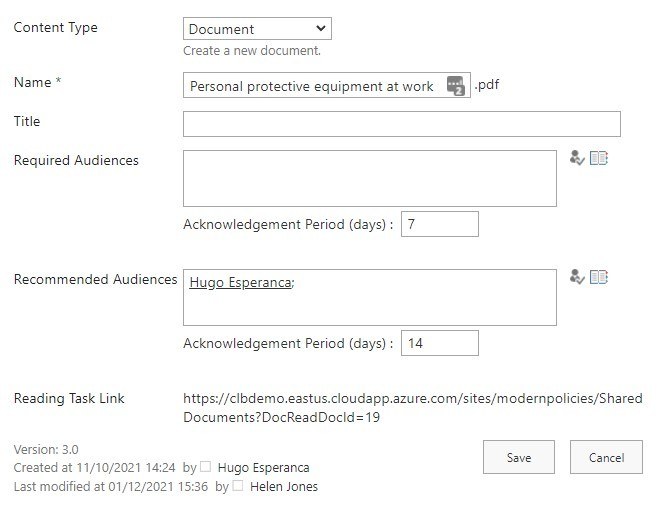
2. Next, select the required and recommended audiences you wish to view the document. This field will determine which individuals to target the SharePoint content to.
Are your policies read on time and by the right people?
DocRead can help
Required or Recommended Audiences?
Use Required Audiences for ‘must read’ documents where compliance is essential. Required tasks will become overdue if not completed by the due date. DocRead will send email reminders to users when tasks are assigned and when they become overdue.
Recommended Audiences can be used where the information is sent only for information purposes and does not need strict completion deadlines or overdue reminders.
Tasks sent to both types of audiences can be tracked and monitored by the reporting suite. The only real difference is the creation of overdue status and reminder emails for required tasks.
Note: The Acknowledgement period shown reflects the default settings input by the SharePoint Site Administrator during the Initial Set-Up process. These may be amended as each specific document is uploaded to a more appropriate value for that document.
3. Use the ‘Browse’ icon DocRead to display the list of available user groups or audiences for this Site Collection.
4. Click on the required groups or audiences (you may choose as many as you wish) and click ‘Add’, then ‘OK’.
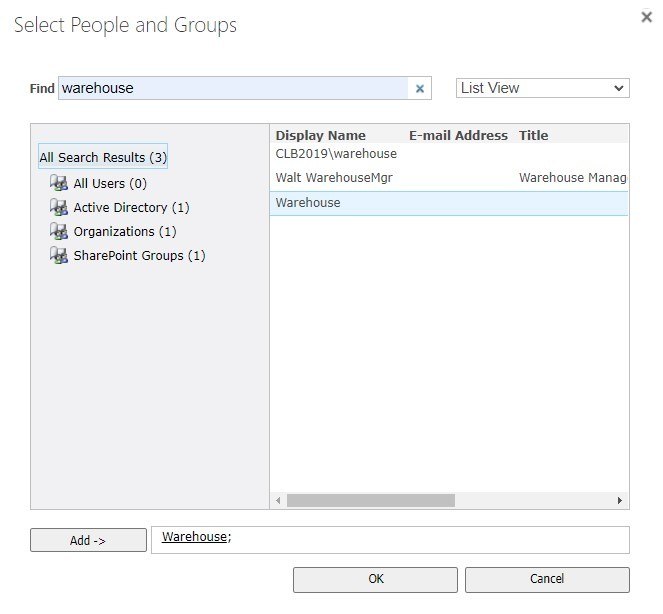
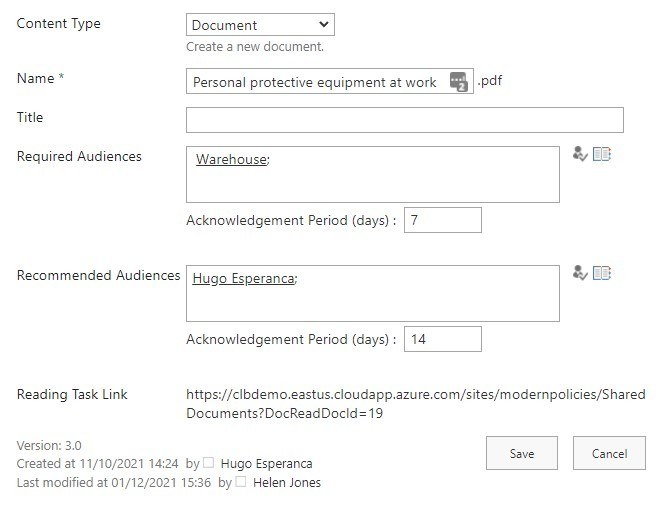
5. Next, enter the number of days you will give each person in the audience to complete the task.
6. Finally, once the document window is complete, click ‘Save’.
I hope you found this useful and can see how DocRead can help target SharePoint content to users. Please visit our Documentation Center to find out more about DocRead,
You may also like:
December 14, 2021
August 6, 2021
10 Steps for Implementing Successful SOPs with SharePointStandard Operation procedures (SOPs) are key in ...
December 18, 2020
Automated content targeting in SharePoint with DocRead Reading TasksNote: This content applies to the on-premise ...
September 8, 2015
Assigning tasks to SharePoint Global Audiences with DocReadNote:The information in this post relates to ...